
How to Create a Deal?
In this guide, I will explain how to create a Deal step by step. By the end of it, you will have a clear understanding of how to create a Deal and how to turn those leads into paying customers. So let's get started!
Instructions
-
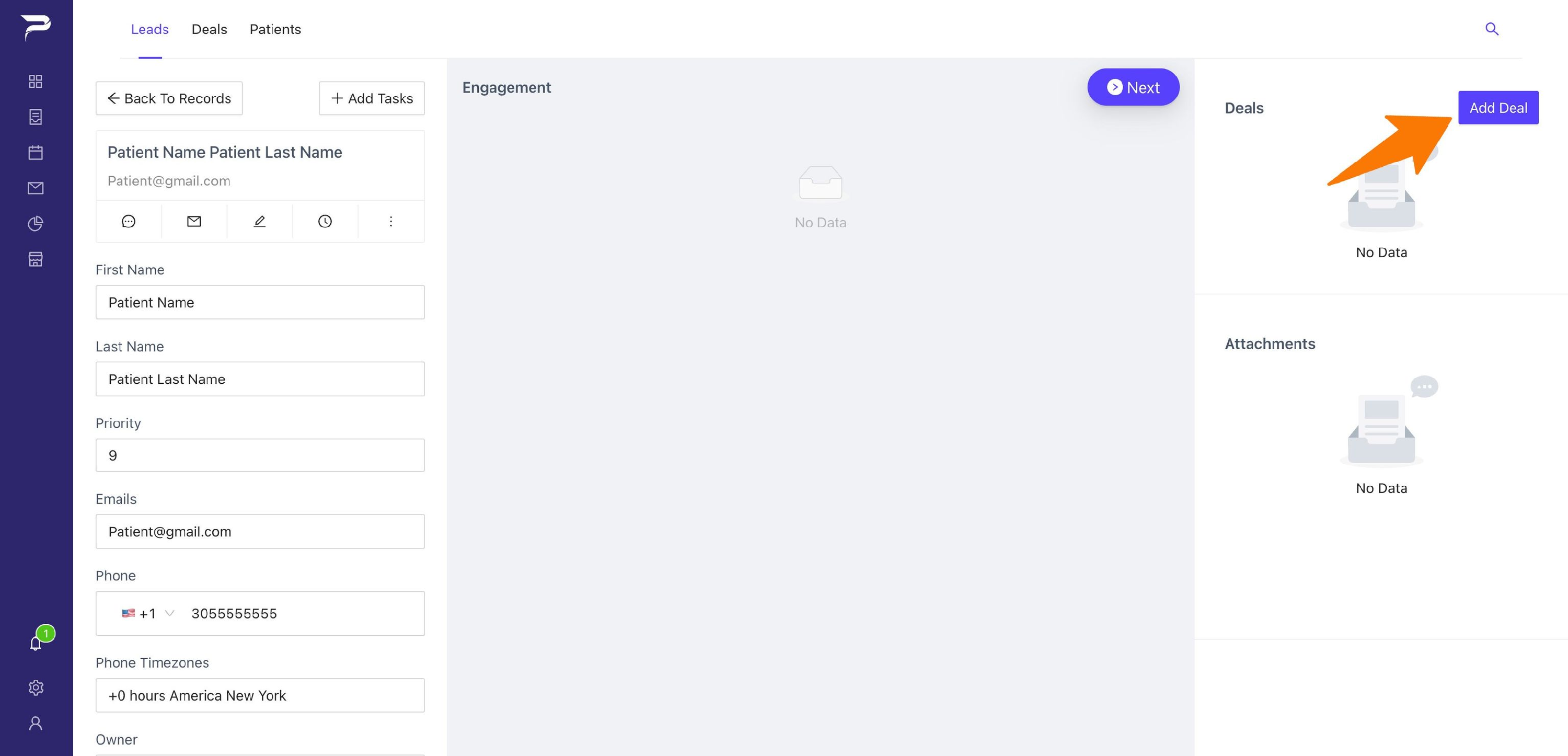
To create a Deal, go to the right corner and click the purple button named (Add Deal).
-
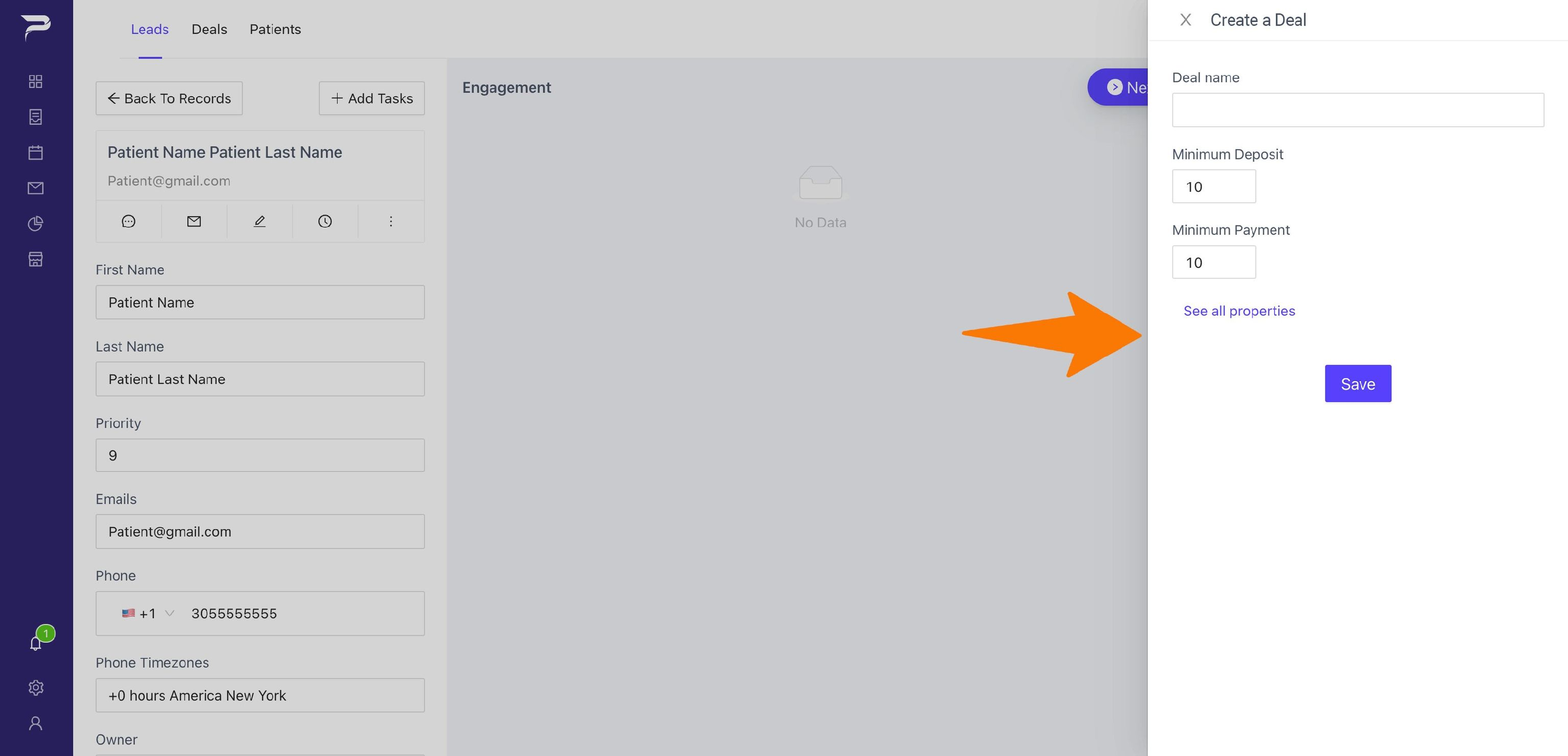
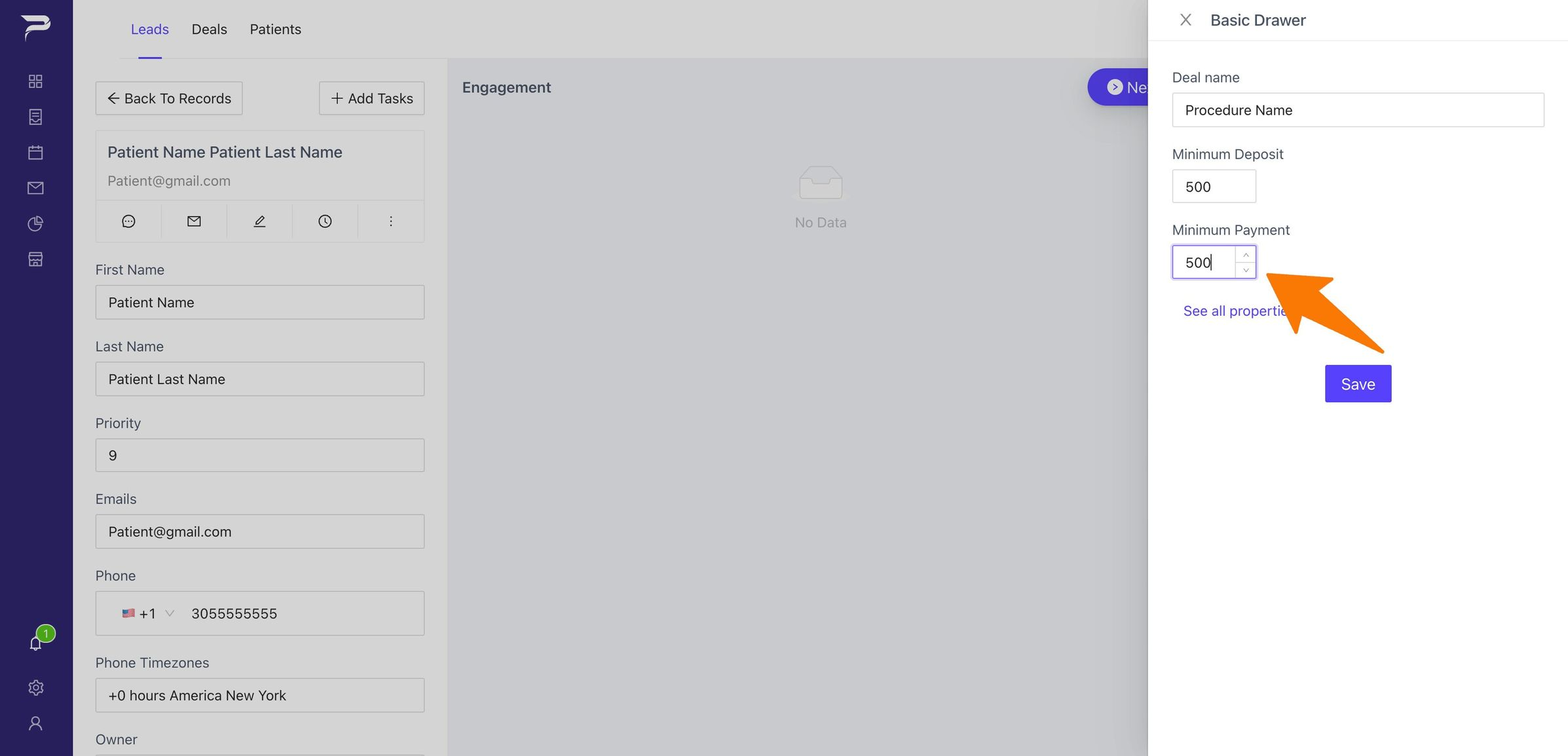
When you click the (Add Deal) button, will appear the sidebar with all the information to fill in.
-
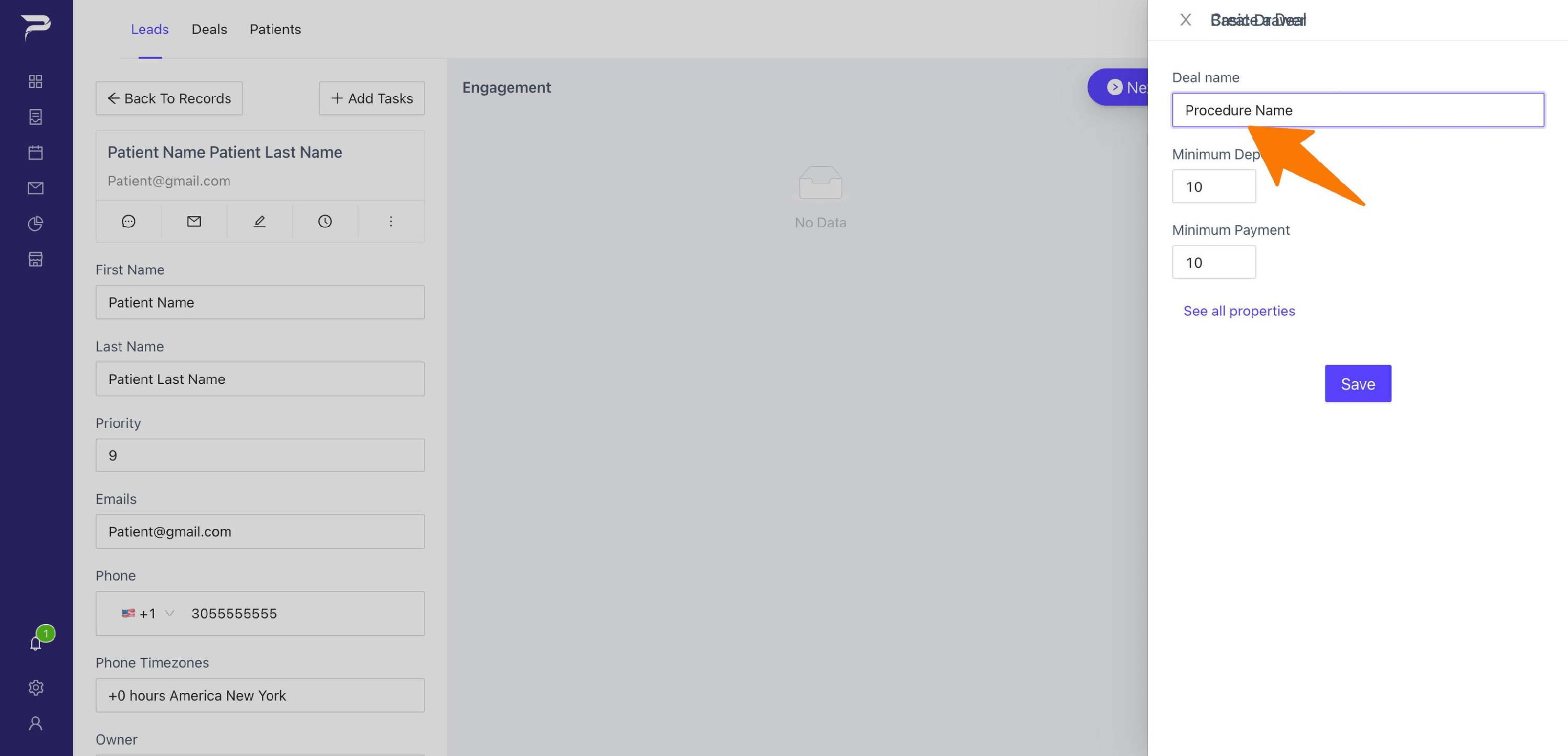
Deal Name: Write descriptive name of the service or cosmetic procedure the patient is getting.
-
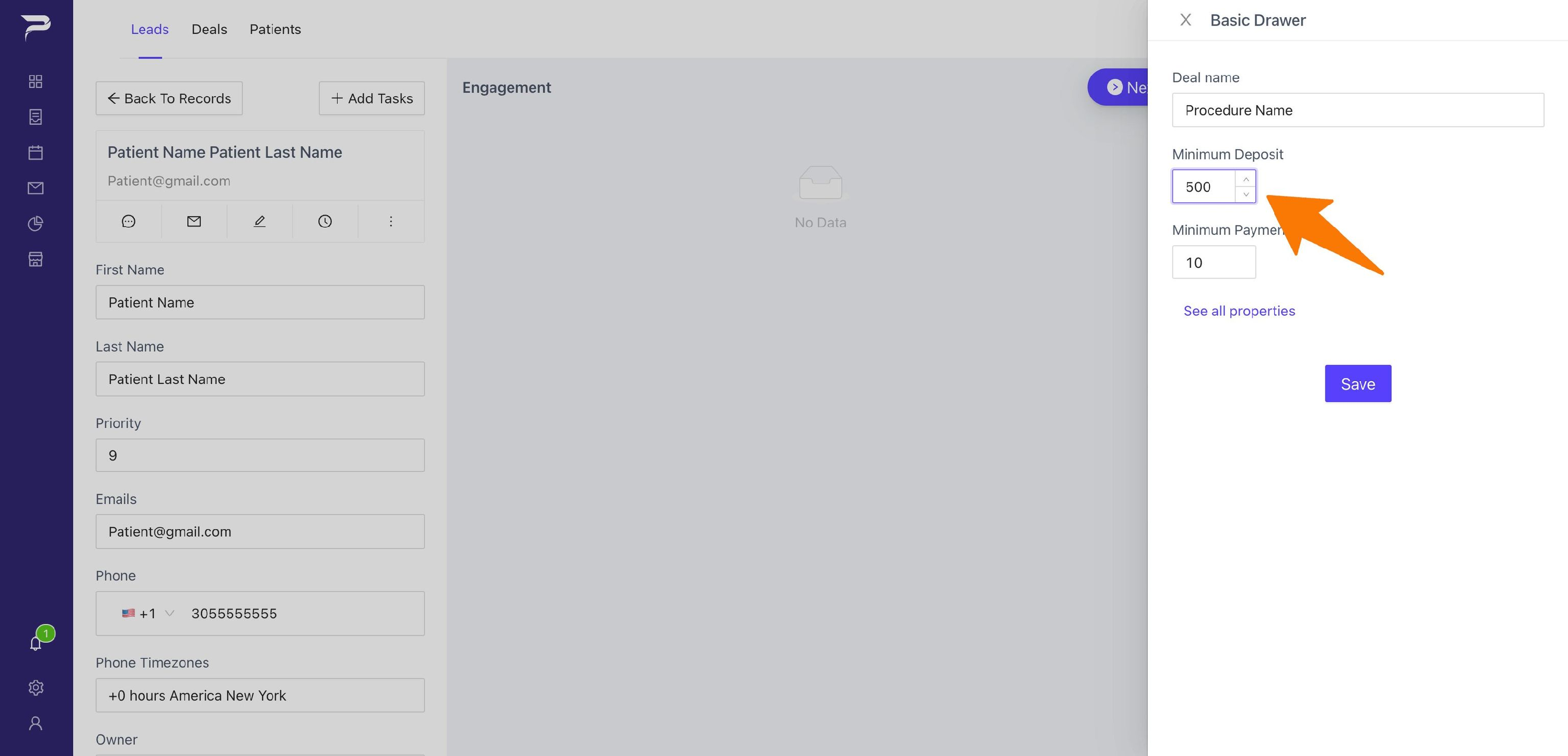
Minimum Deposit: The Minimum amount not refundable.
-
Minimum Payment: The Minimum amount for the deal to be considered closed, and for the lead to become a patient.
-
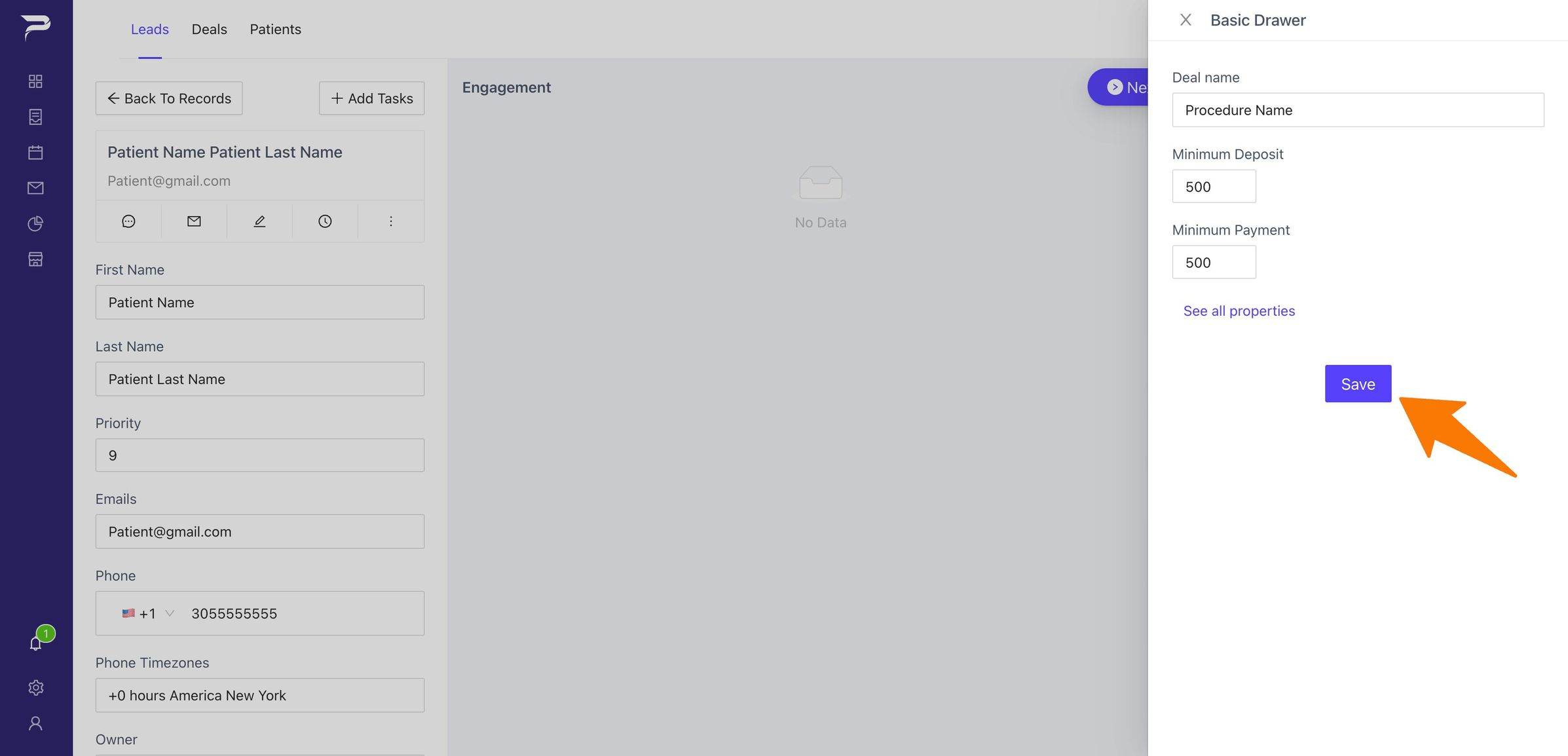
Save: Click the Save button to finalize the Deal
-
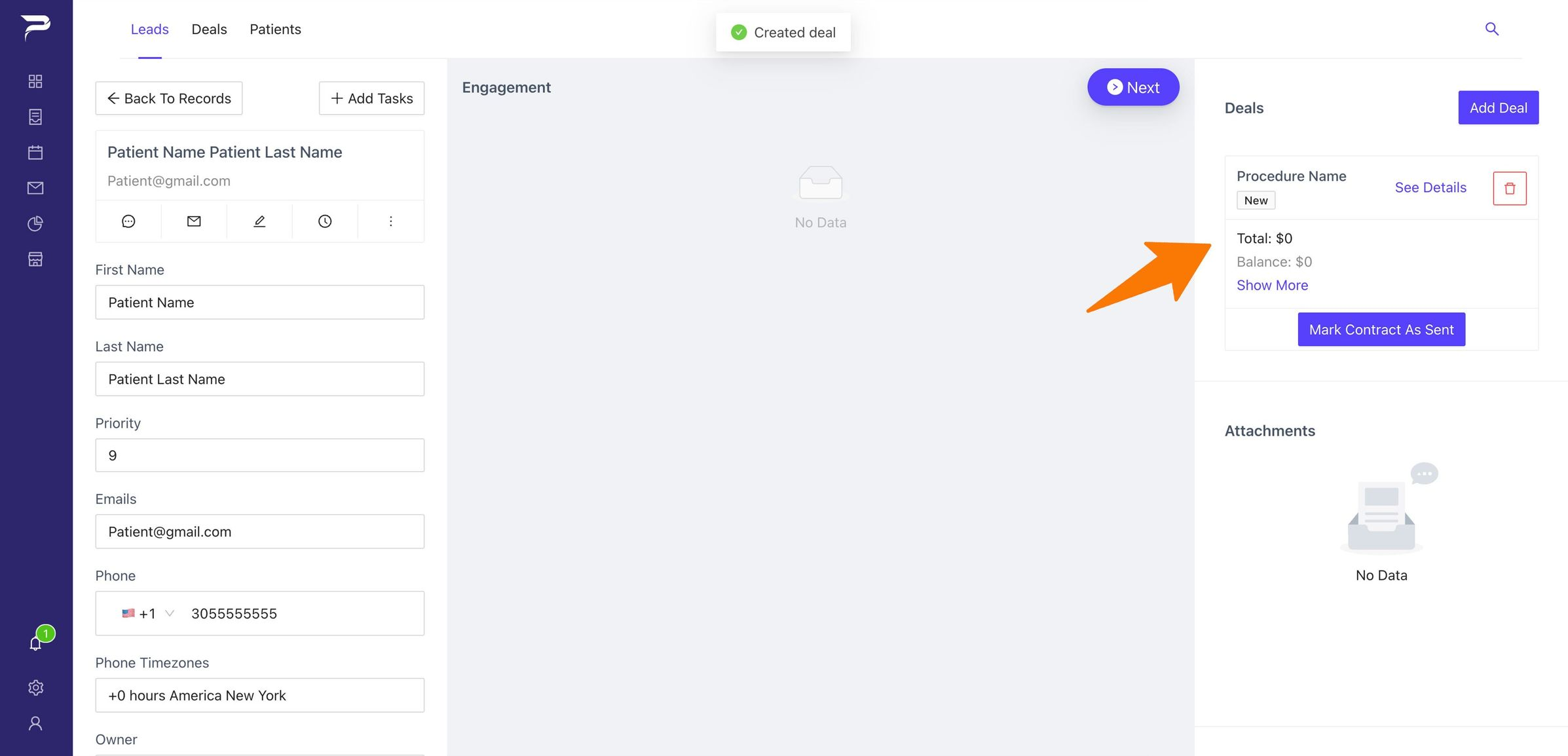
Deal Created: This is how your Deal looks like.
-
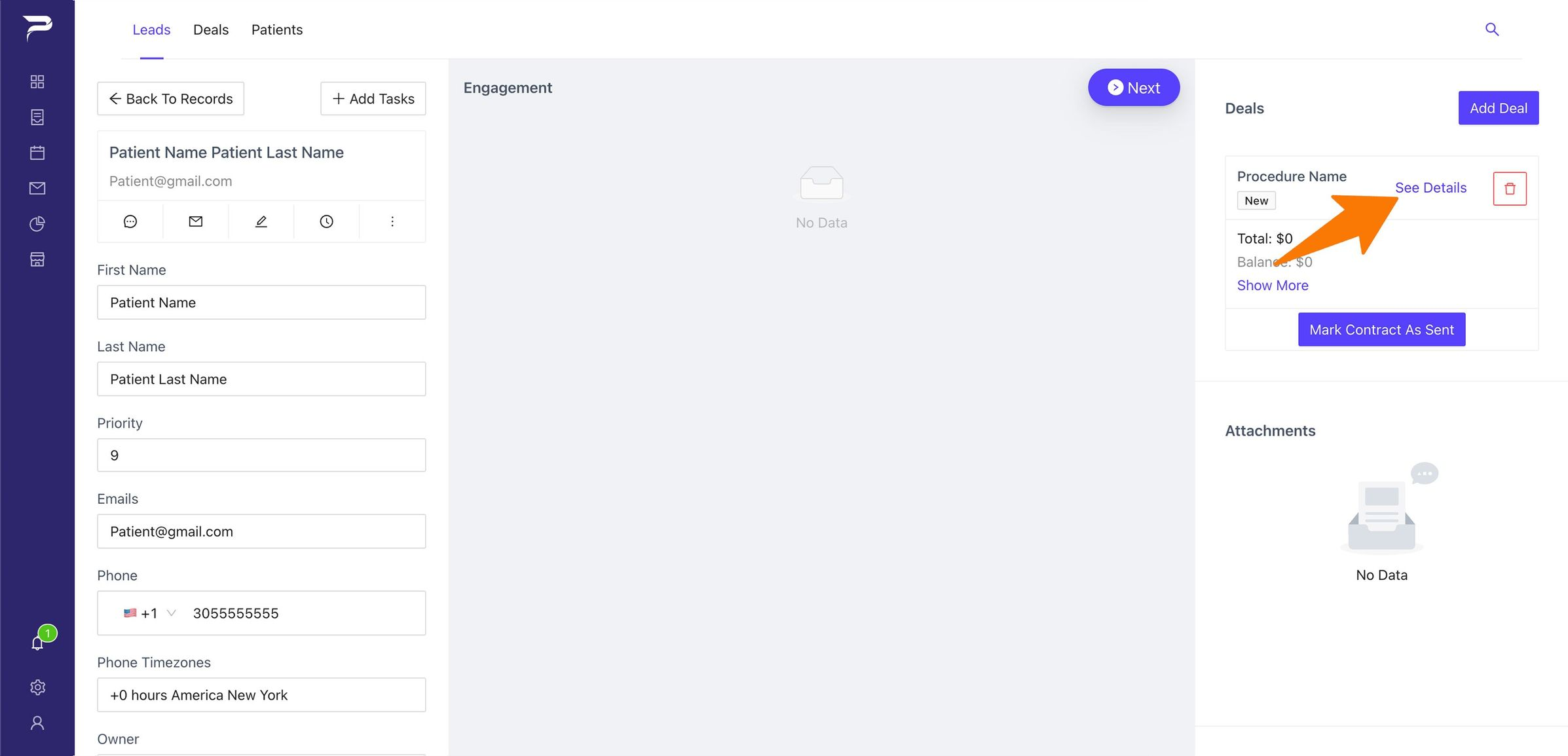
Add Product: Once the Deal is created go to (See Details) to add a Product.
-
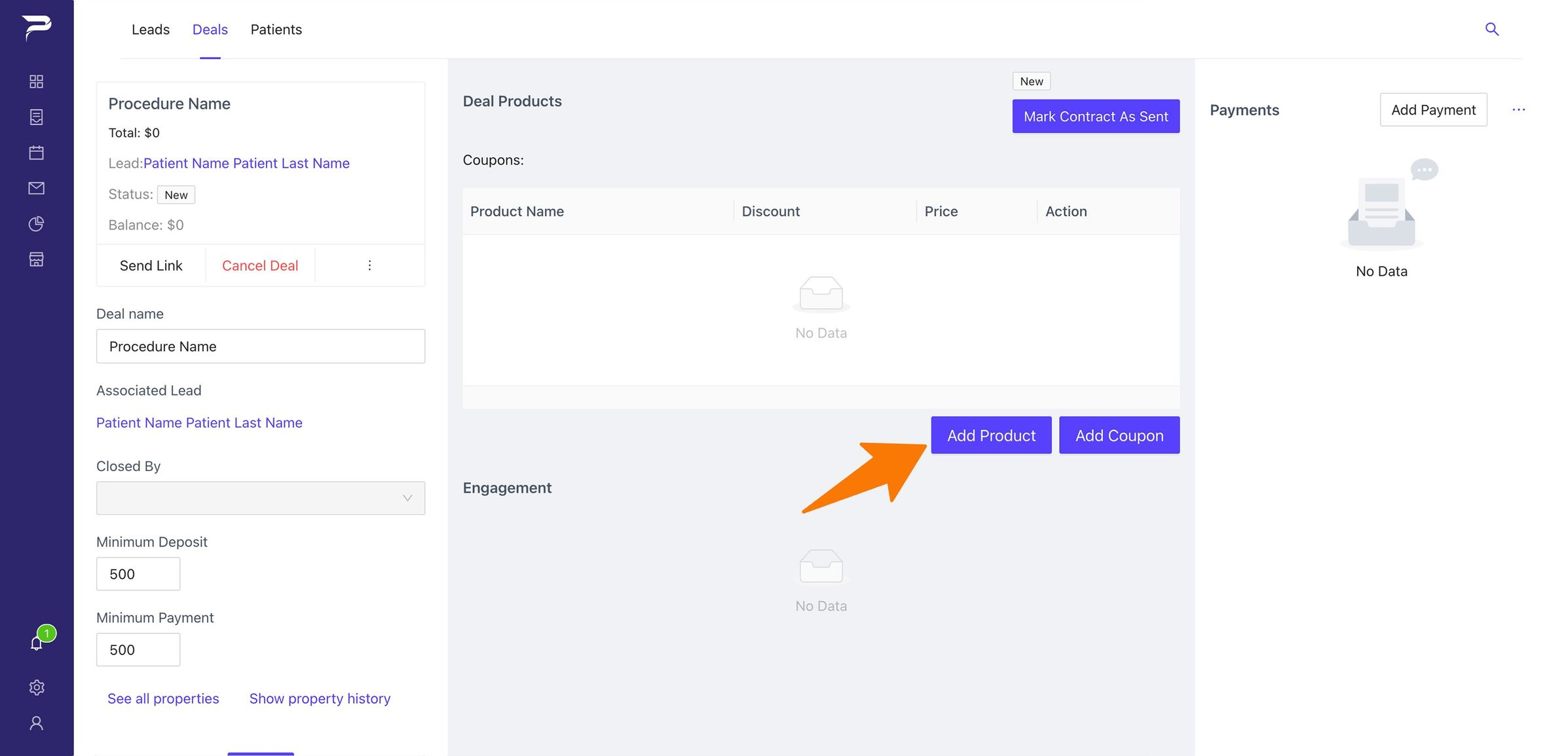
Add Product: Once inside the Deal, click the button (Add Product) to add the procedure.
-
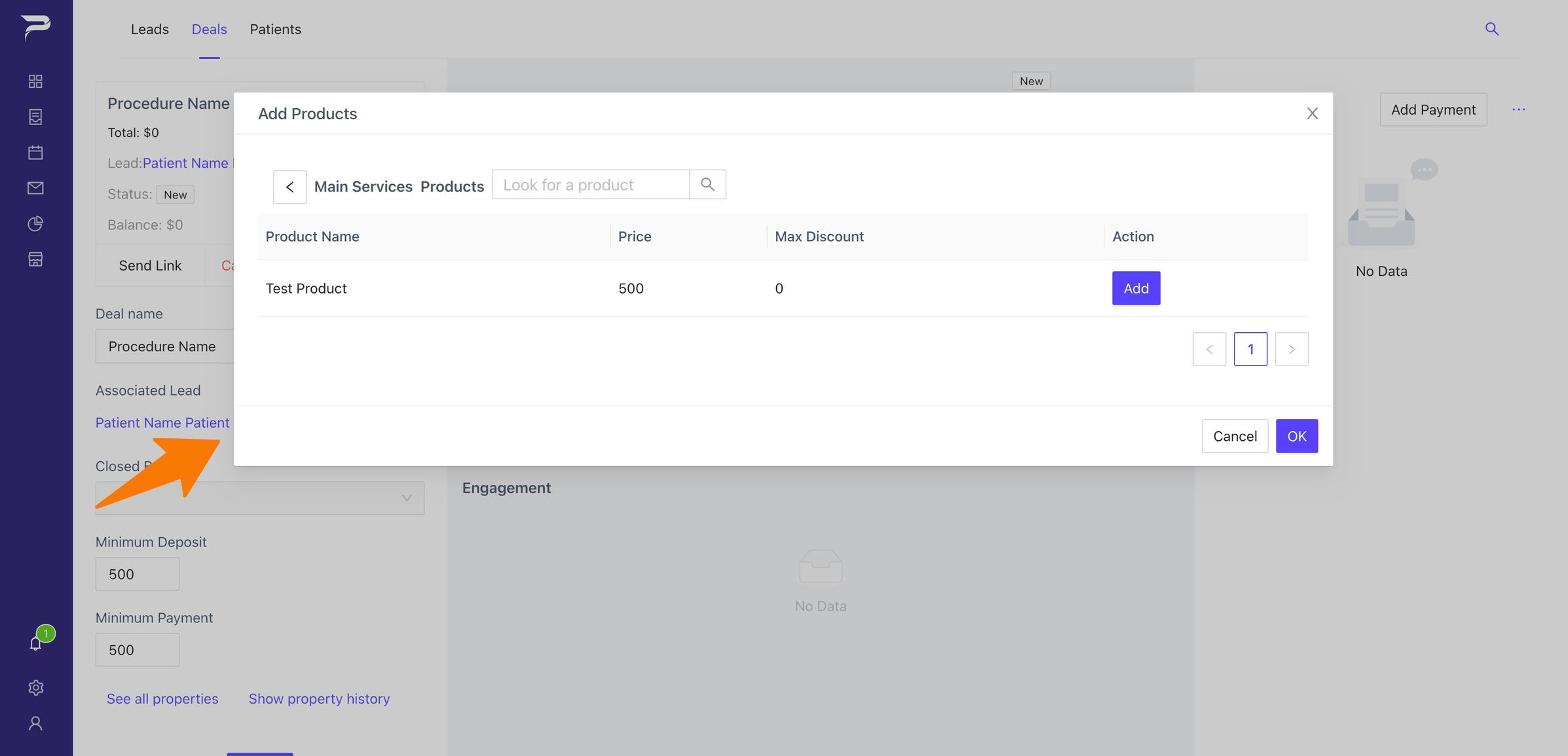
Add Product: Your products will be displayed in a little box. (note: to create your products follow this link)
-
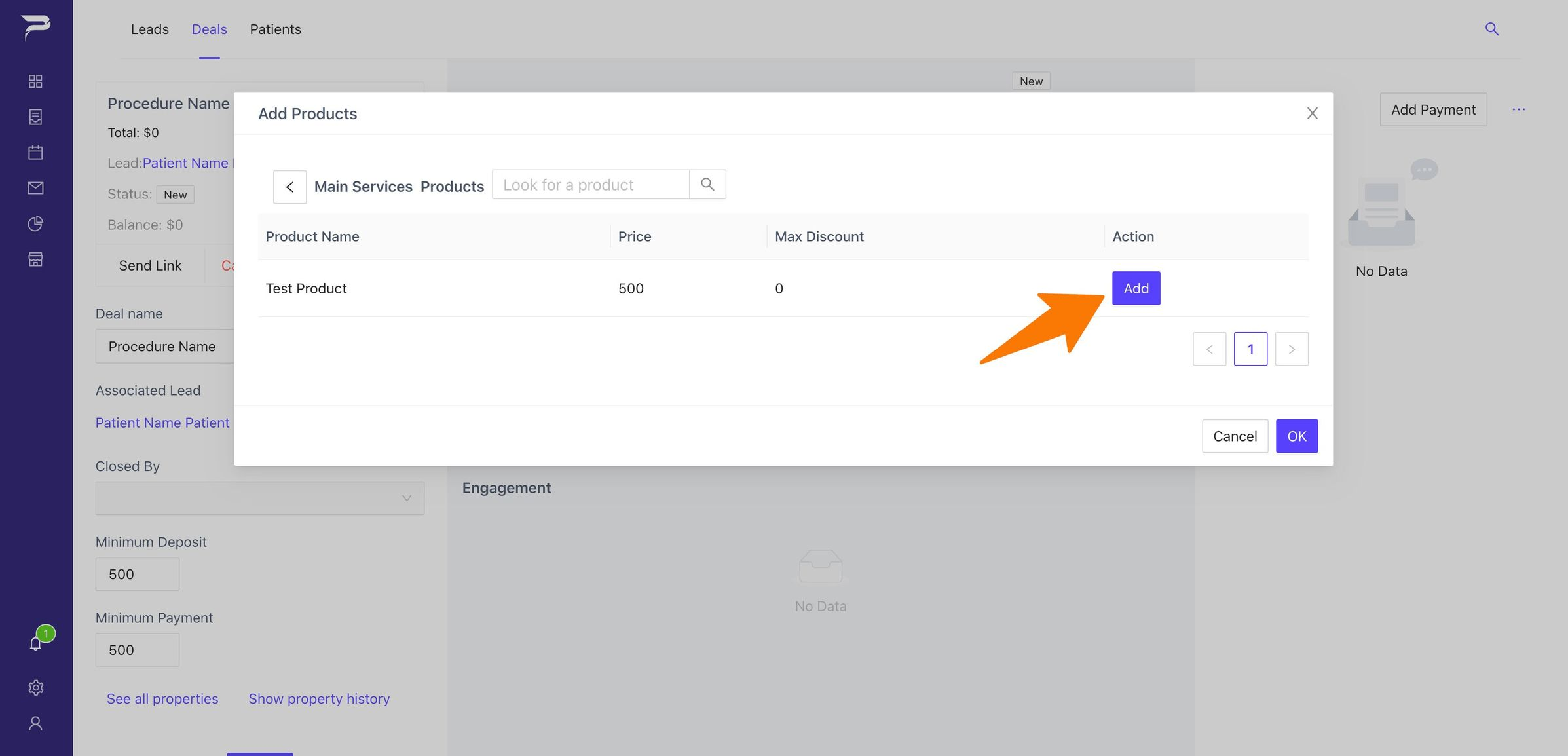
Add Product: Press the (Add) button for the Products you wish to add, and then click (Ok).
-
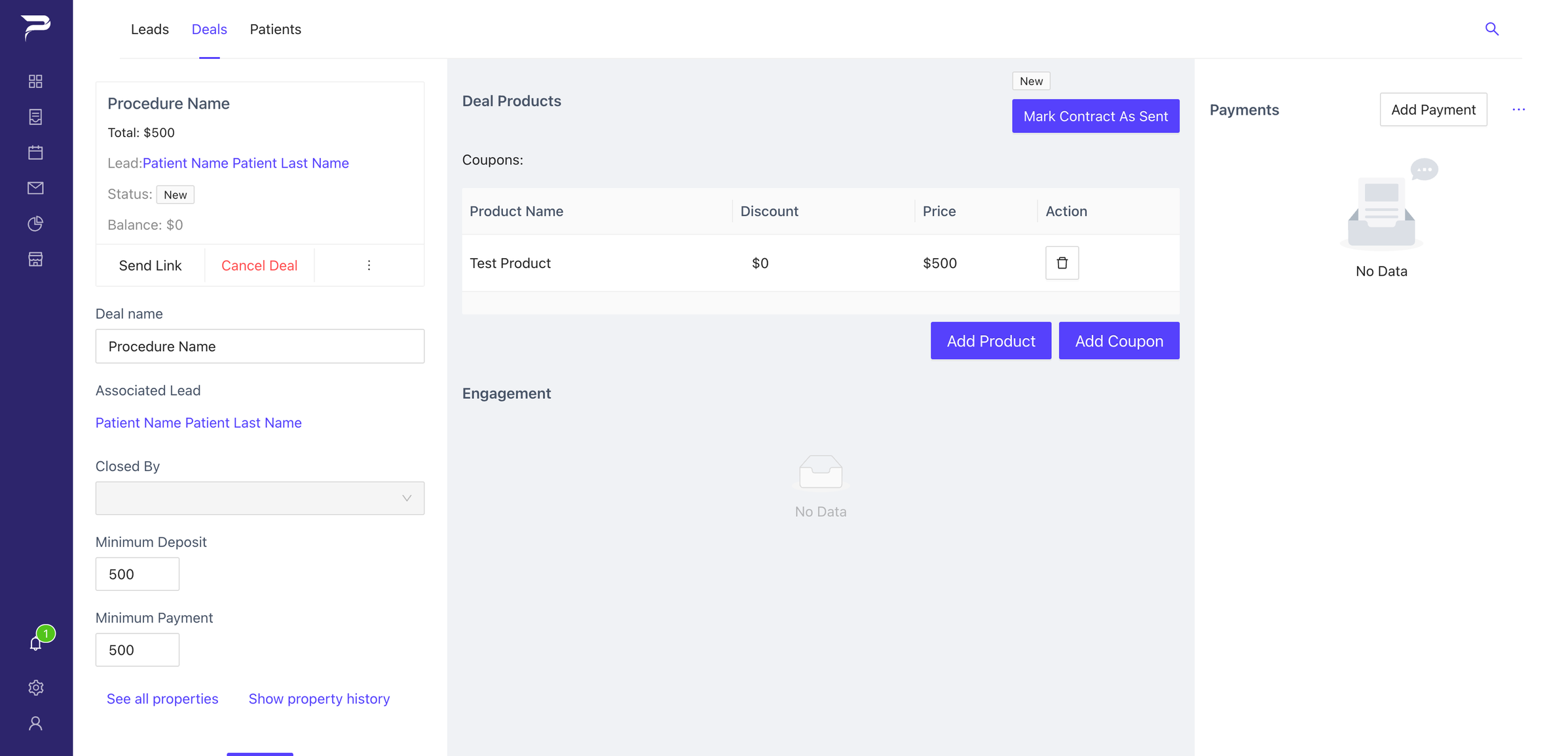
Completed: Now you have completed your Deal. Congrats!!!
Once you have created a deal, if the client is ready to make a deposit you will want to send a link to client to see the details of the order, sign the refund policy and finally make a payment. Follow this link to learn how to do that.