
Create a Payment Link
What is a Payment link and what are the benefits?
A payment link is a unique URL that allows customers to make secure online payments for products or services without the need for a complex checkout process. It can be shared via email, text message, social media, or embedded in a website, making it a versatile and convenient payment solution.
Here are some benefits of using payment links:
- Simplified transactions: Payment links eliminate the need for customers to go through multiple steps during the checkout process, making transactions quicker and more straightforward.
- Improved conversion rates: With a simplified payment process, customers are less likely to abandon their purchases, leading to higher conversion rates.
- Increased security: Payment links typically use secure payment gateways and encryption to protect sensitive customer data, reducing the risk of fraud.
How can I create a Payment Link?
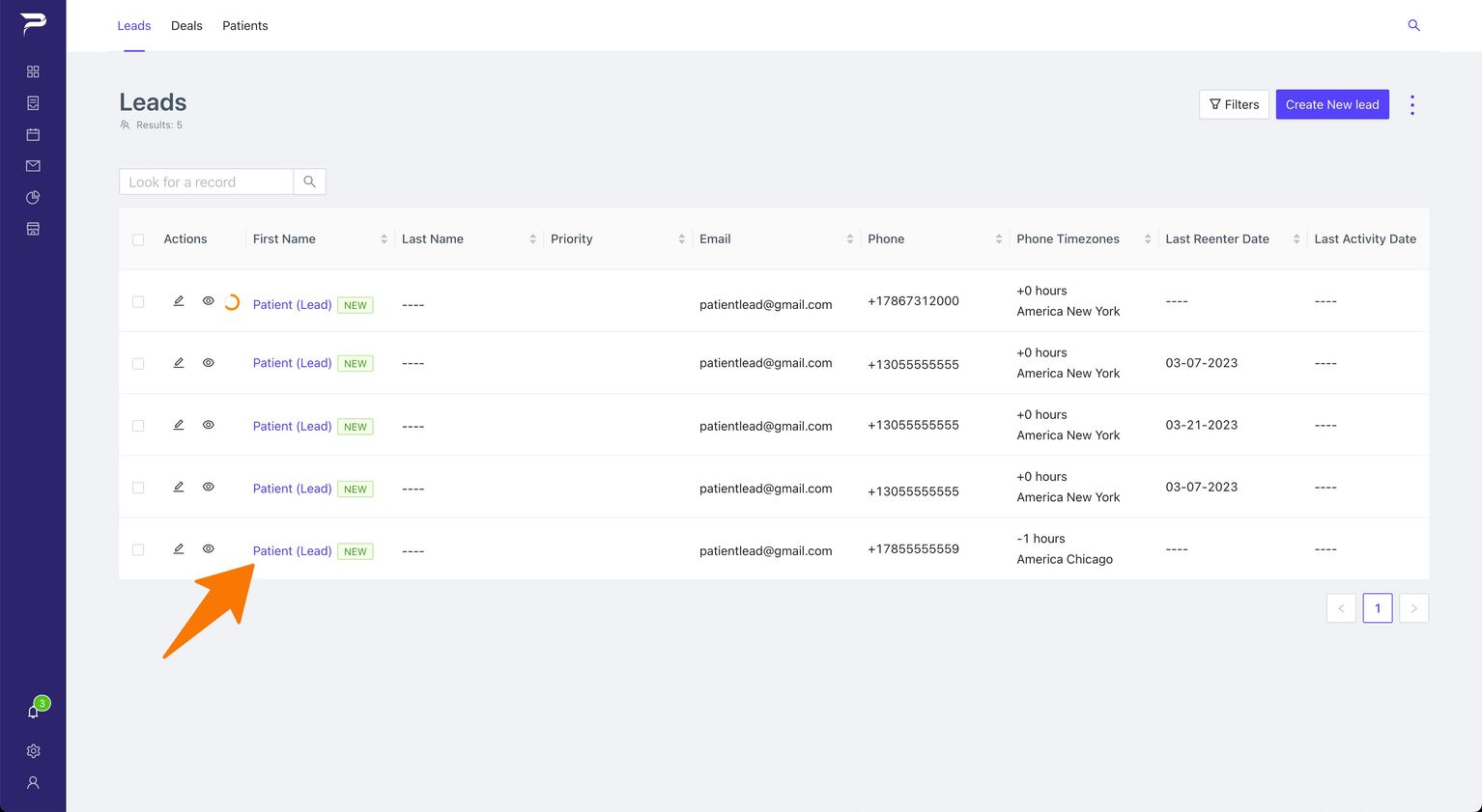
1: Go to Leads Overview and select the “Lead/Patient” you want to send the “Payment Link”, by clicking on the lead's name.
Note: "To generate a 'Payment Link,' you must first create a deal. If you're unsure how to do so, follow this link to learn the process." How to create a deal >
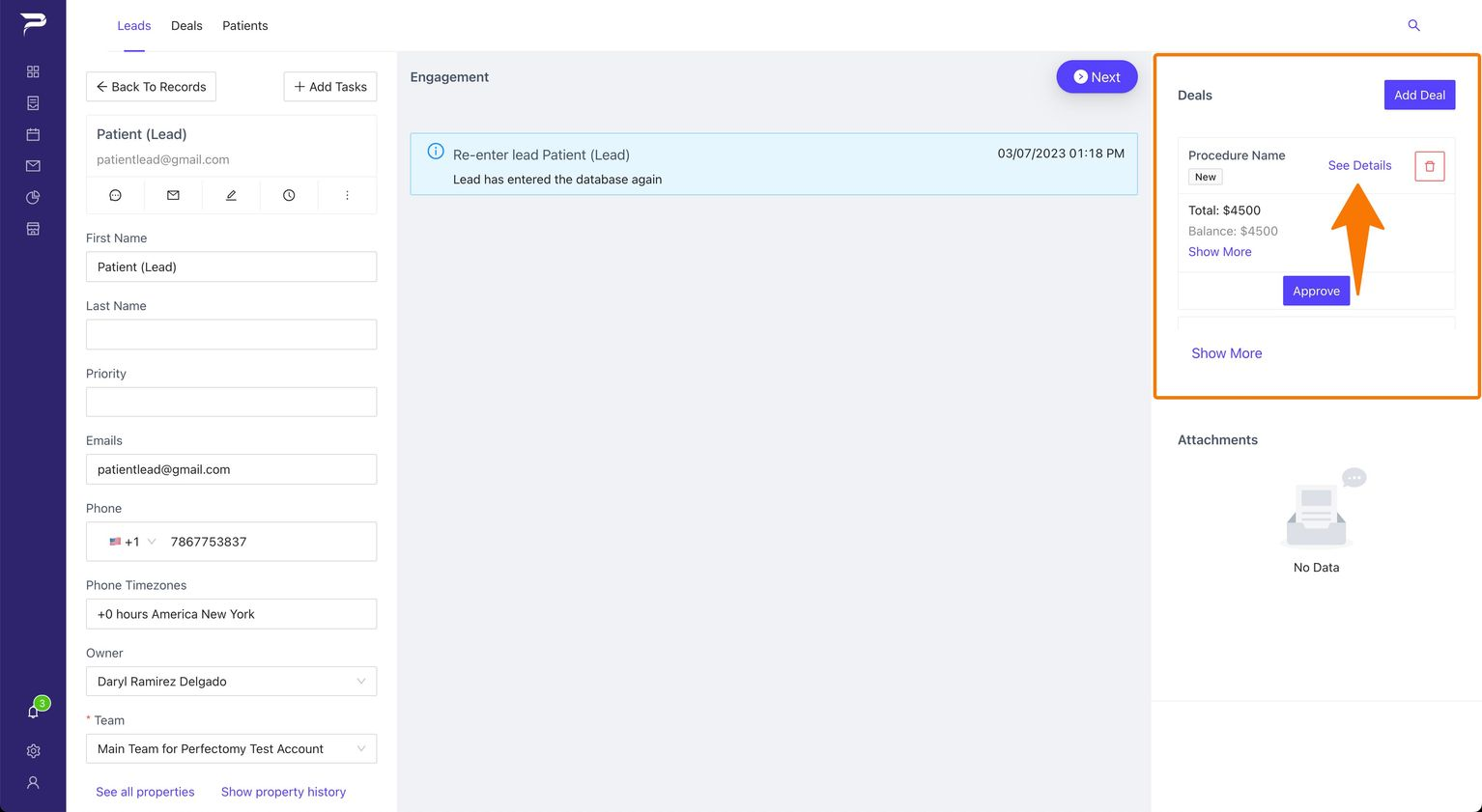
2: In the left sidebar, go to the Deal and click the link “See Details”
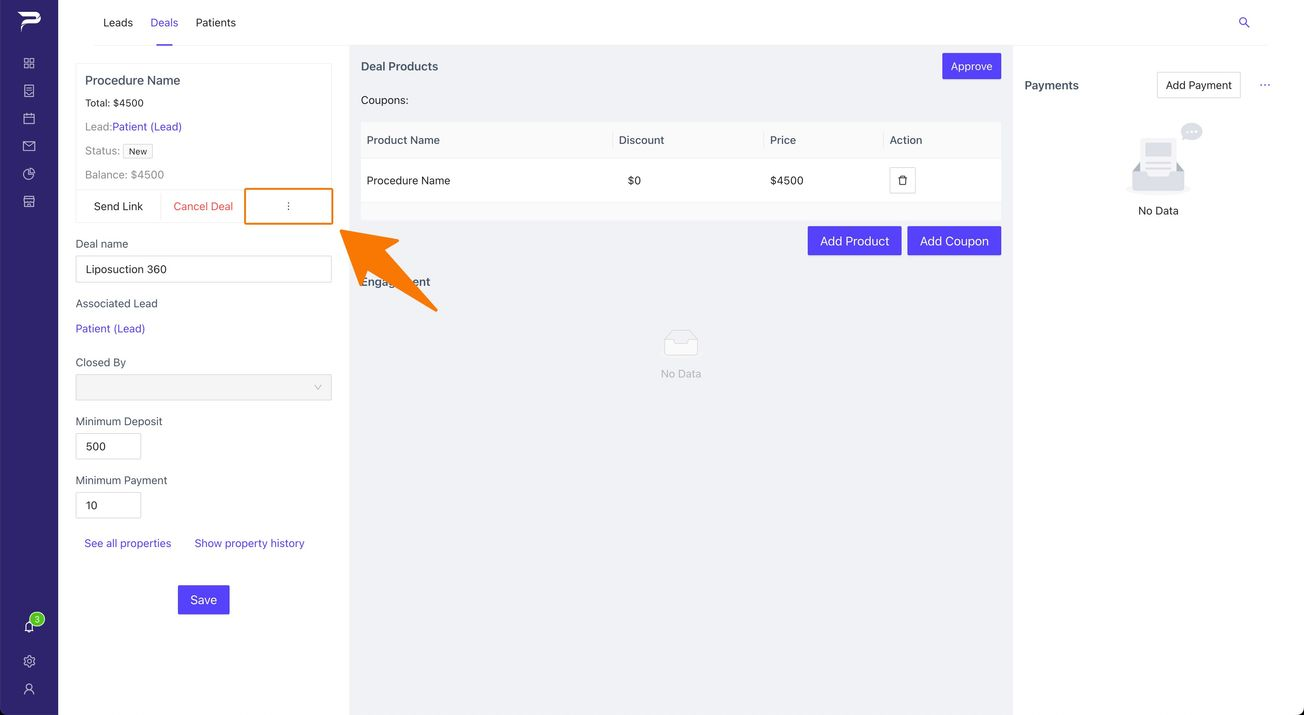
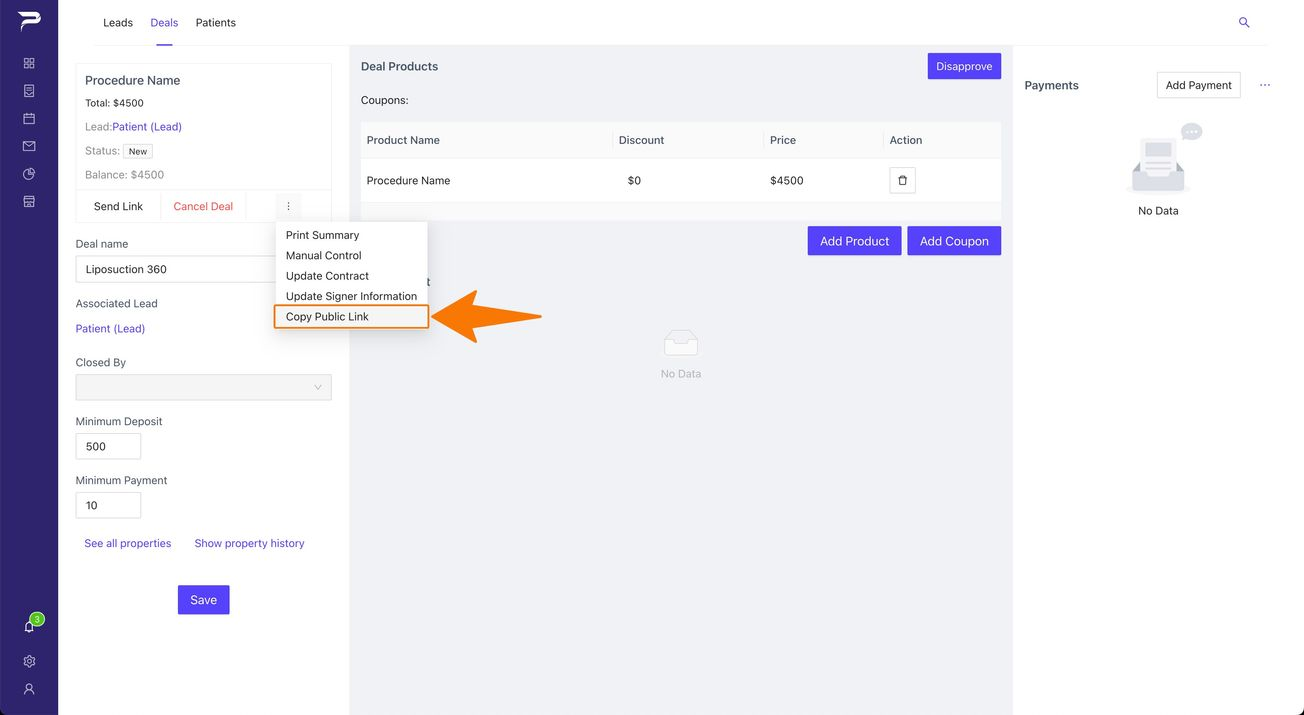
3: A deal layout will be displayed. Locate the button with the three dots in the left sidebar and click on it.
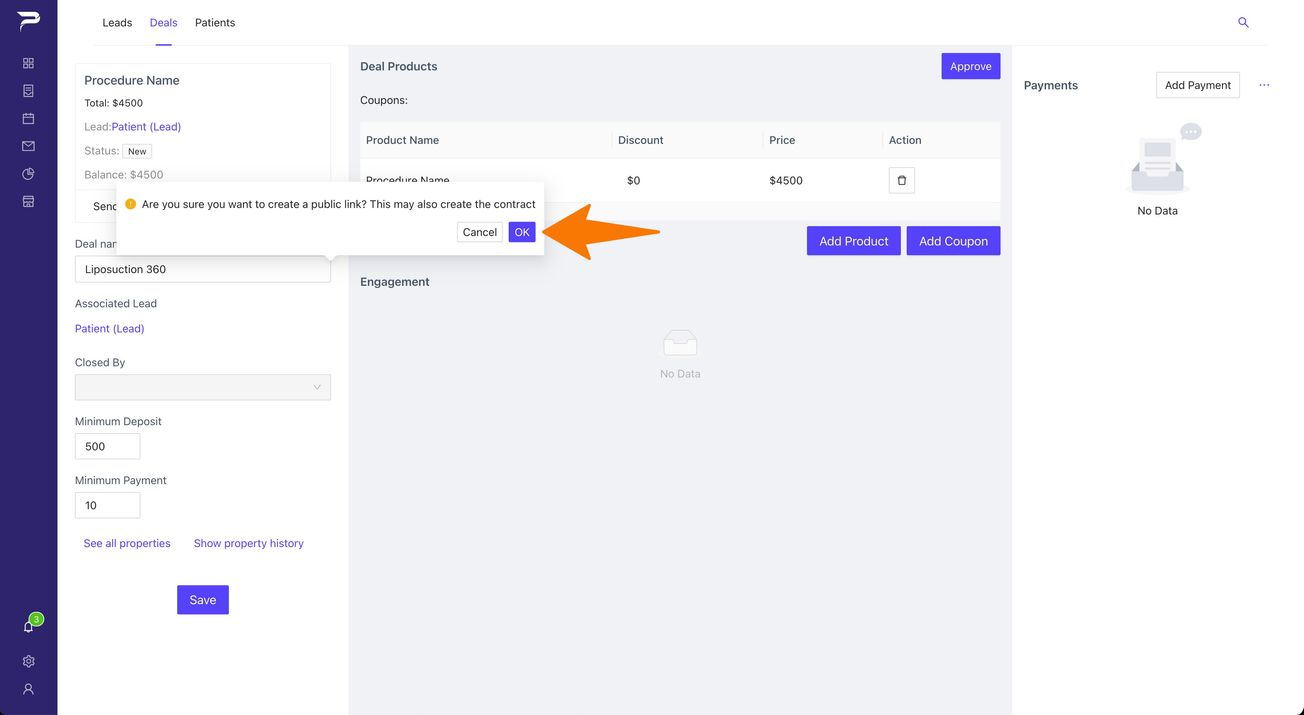
4: Click “Create a Public Link“
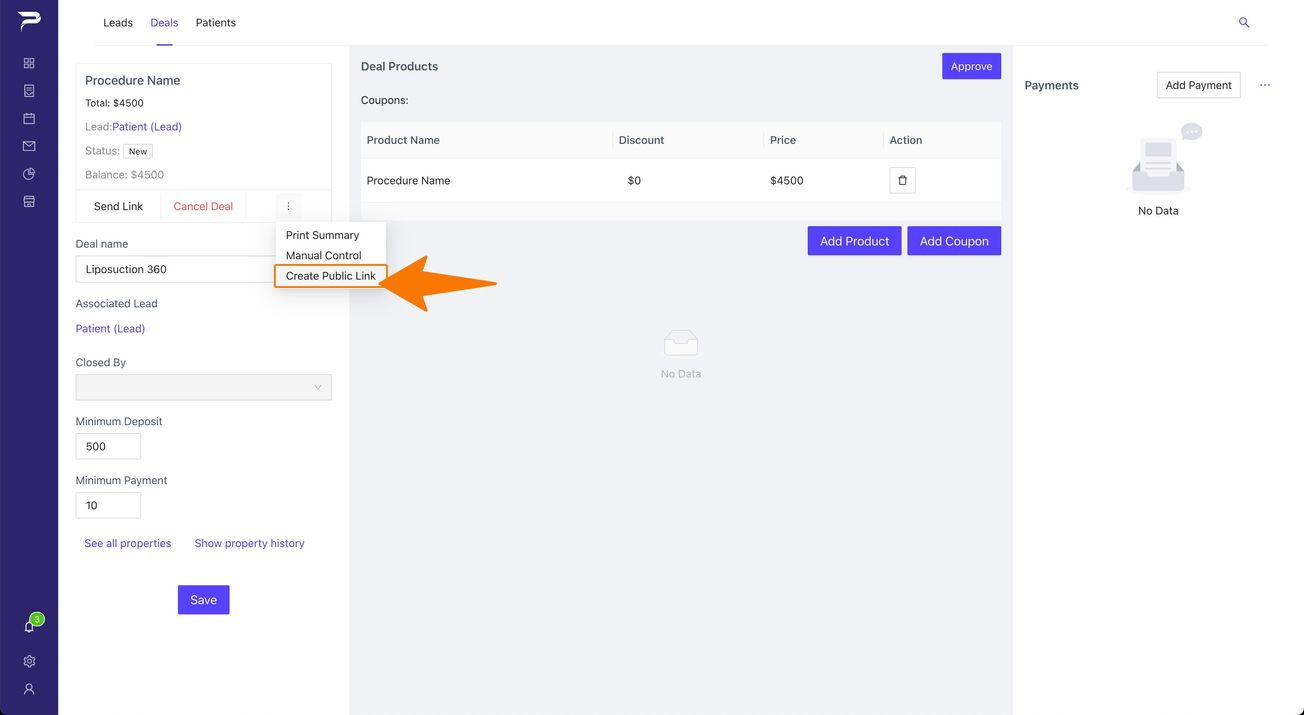
Note: A notification will appear with the message "Are you sure you want to create a public link? This may also create the contract“. Press the OK button.
Open press-ok.jpg
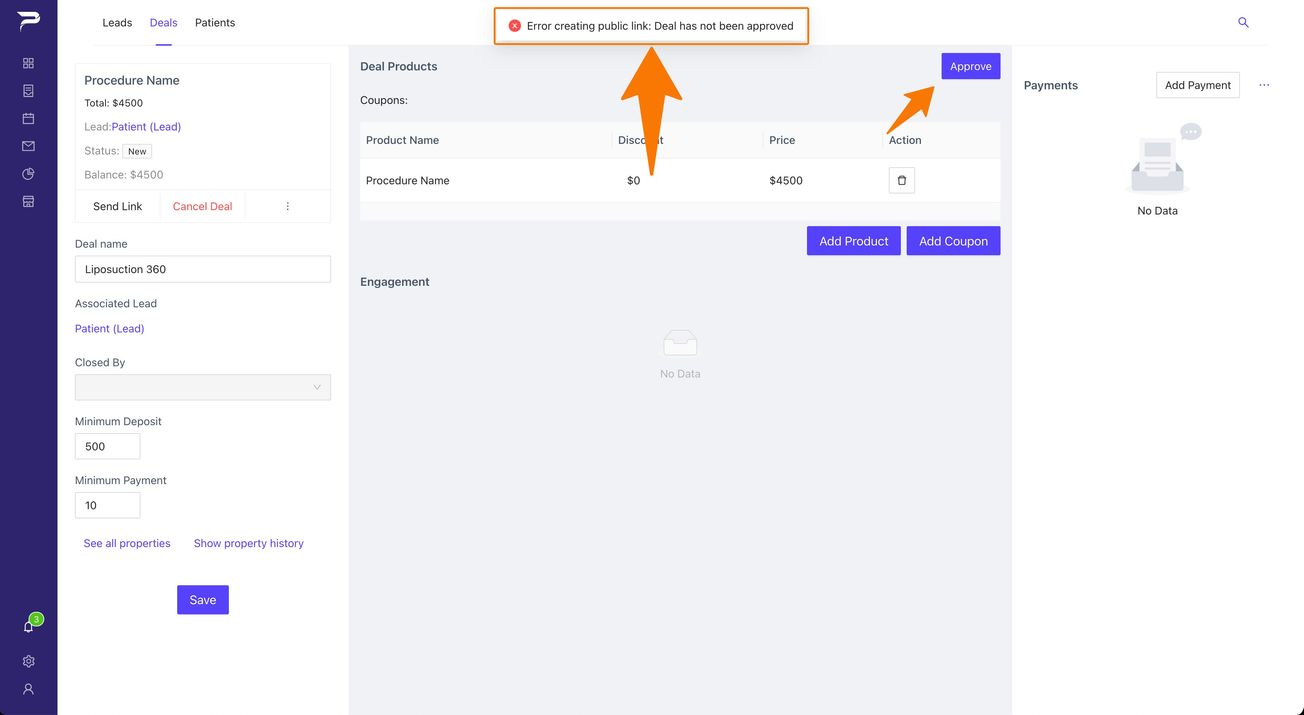
"Note: If the deal has not been approved beforehand, a notification may appear displaying the message, 'Error Creating a Public Link: Deal has not been approved,' as illustrated in the image below."
"Note: Click the 'Approve' button and proceed with the following steps."
5: Click the button “Send Link” as shown in the image below and click OK.
Open send-link.jpg
6: After creating the Public Link, if you want to send the link through Whatsapp or Messages etc,
Locate the button with the three dots in the left sidebar (as illustrated in image #3), click on it, and then select the “Copy Public Link” button.
Once the Public Link has been copied, you can decide on the most suitable method to share the link with the patient, allowing them to proceed with the payment.
7: Congratulations, you have successfully created and sent the link.
Remember: Link is valid for 24 hours
Instructions
Highlight important information in a panel like this one. To edit this panel's color or style, select one of the options in the menu.
Related articles
-
Page:
-
Page:
-
Page:
-
Page:
-
Page: