
Assign leads and receive notifications
In this article, we'll show you the two ways to assign leads and where the notifications will be shown when leads are assigned.
First Option: The initial alternative involves assigning a single lead to another team member (sales consultant).
1: Select, by pressing on the name, the lead for which you'd like to modify the assignment to a different coordinator.
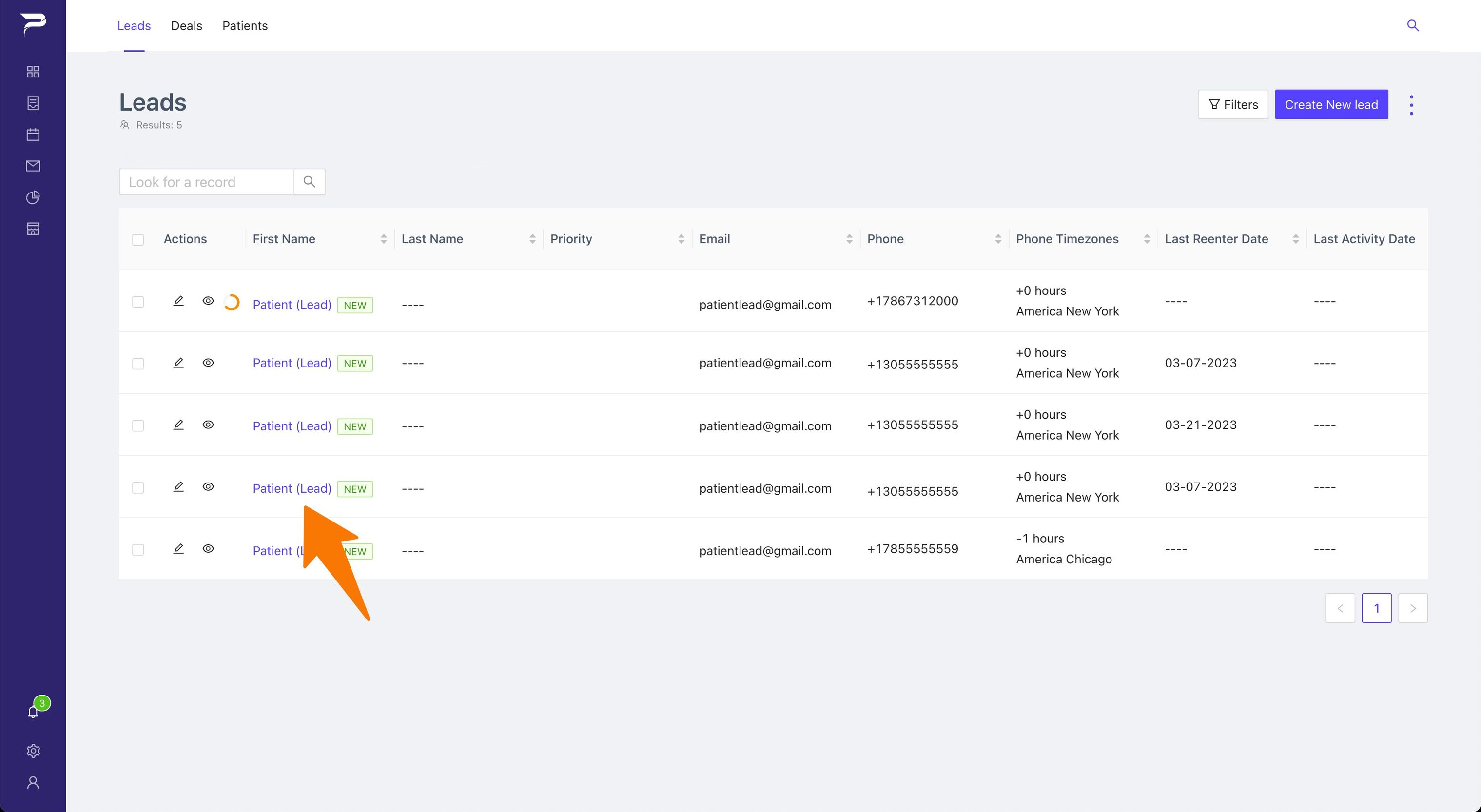
2: Simply click on the "owner square" that can be found in the left sidebar.
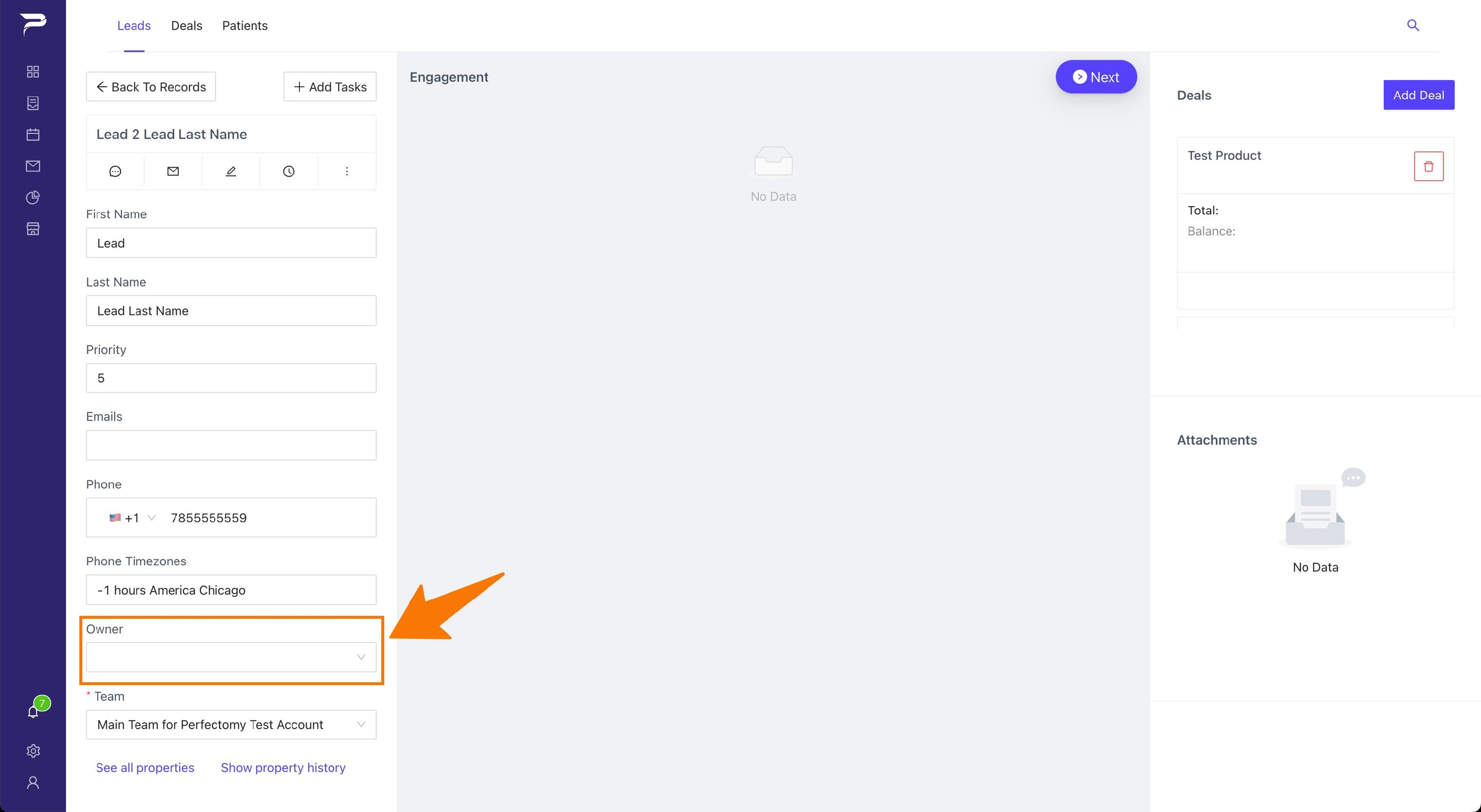
3: Determine which team member (sales coordinator) will assume responsibility for managing the lead.
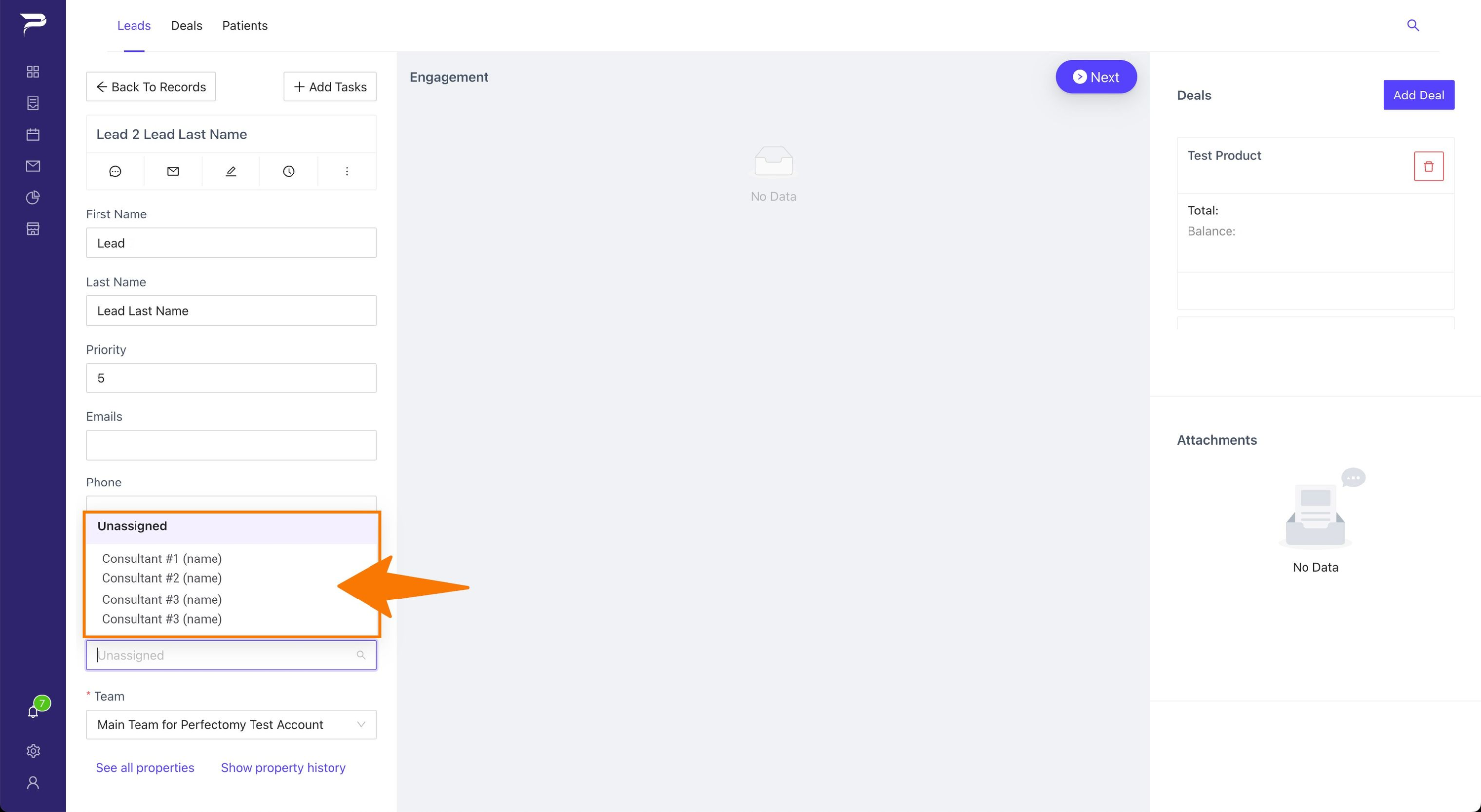
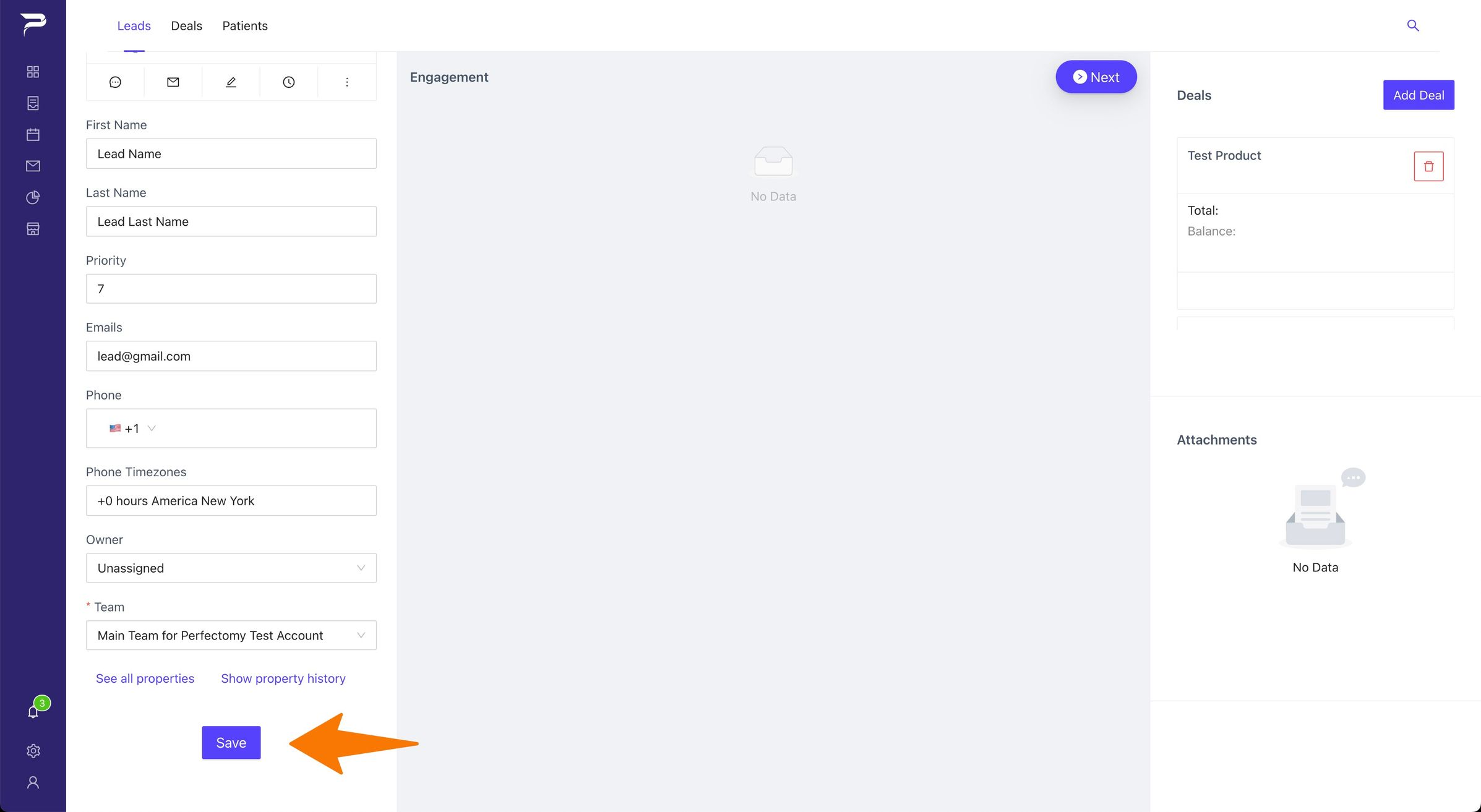
4: Once you've finished the assignment, click the button "Save” that appears once you scroll down in the left sidebar.
Second Option: The other option to consider would be allocating several leads to a single team member.
1: The first step is to go to the “Leads Overview” as shown in the image below.
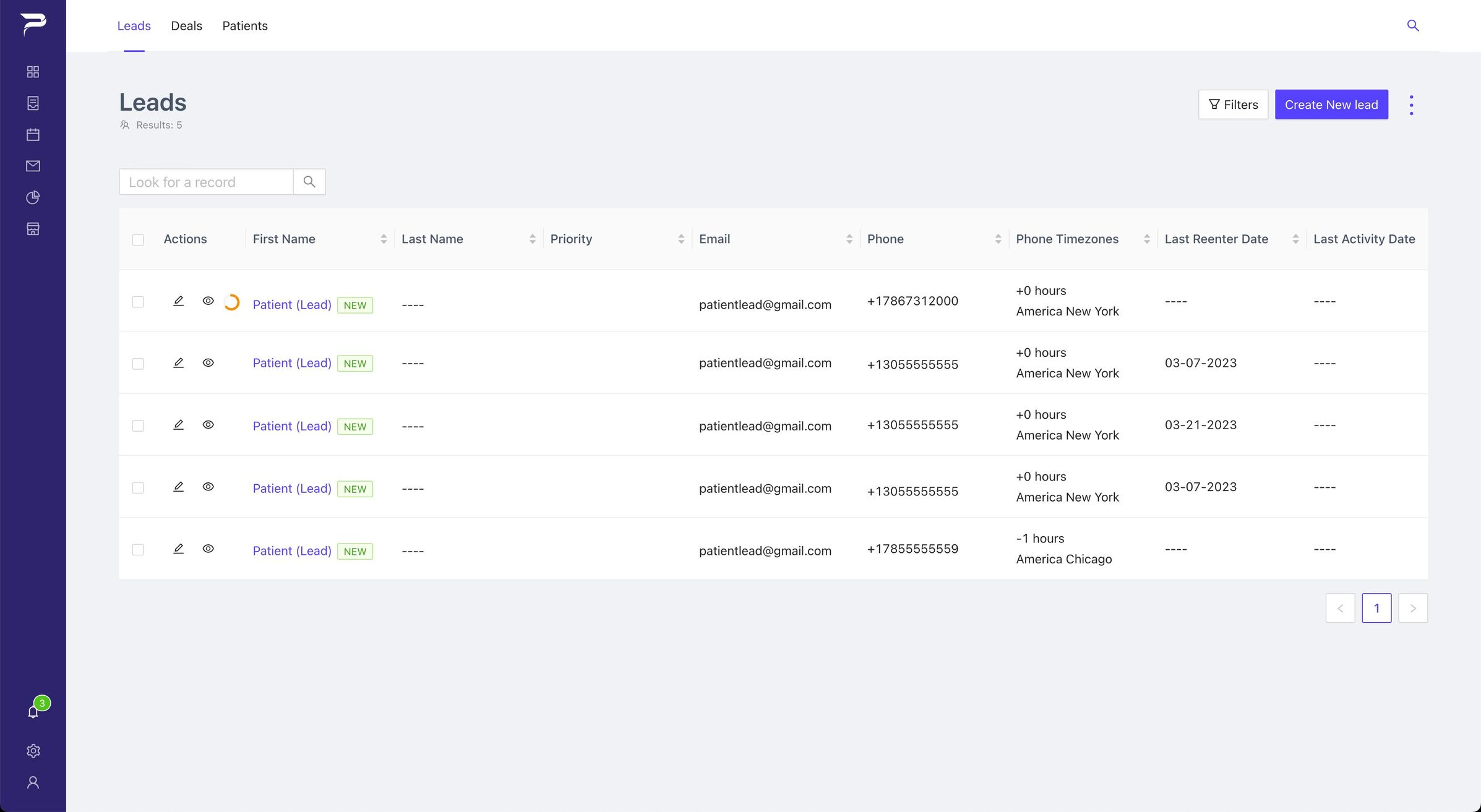
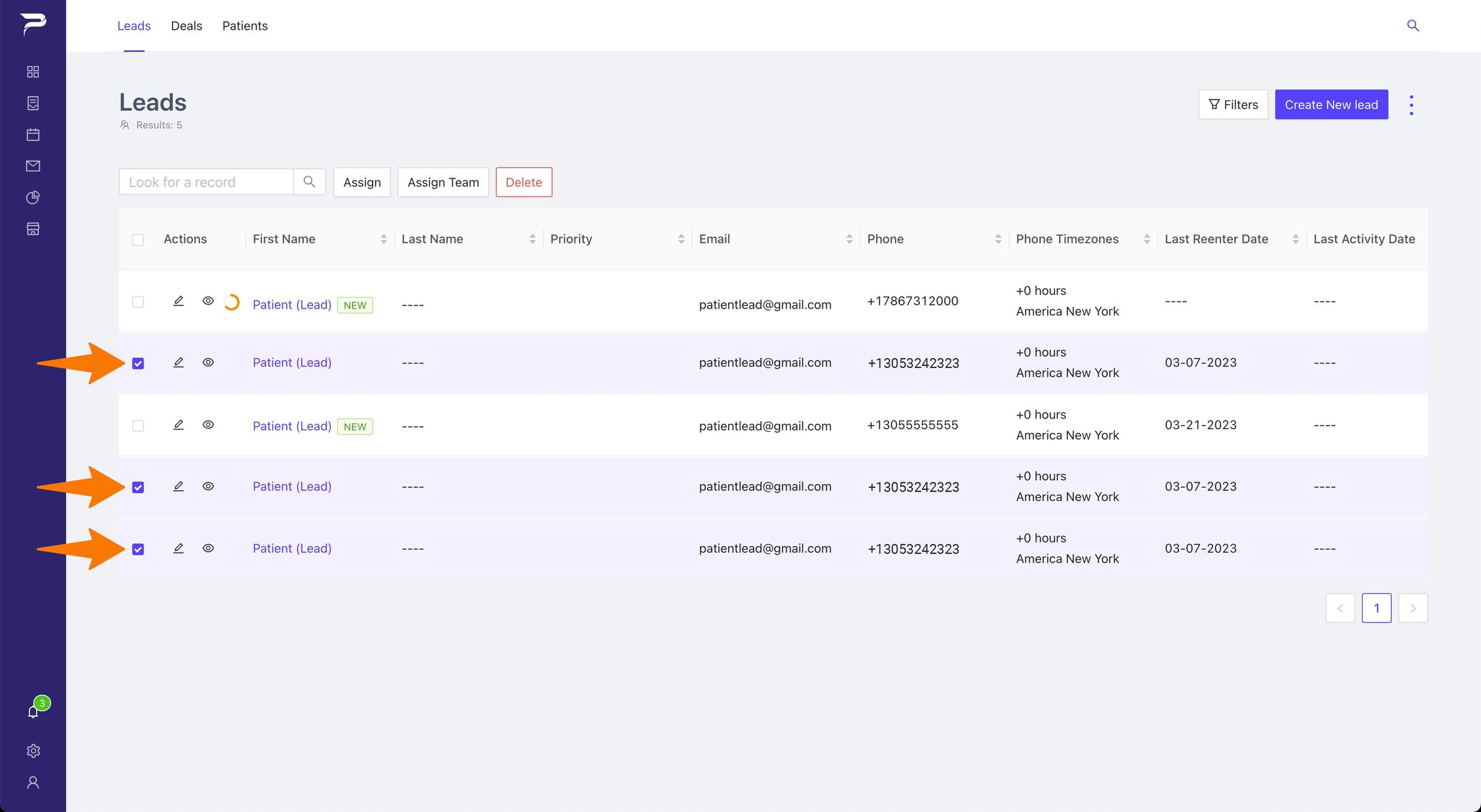
2: Select the lead you wish to change the assignment for by clicking on the small square located to the left of the lead's name, as illustrated in the image below.
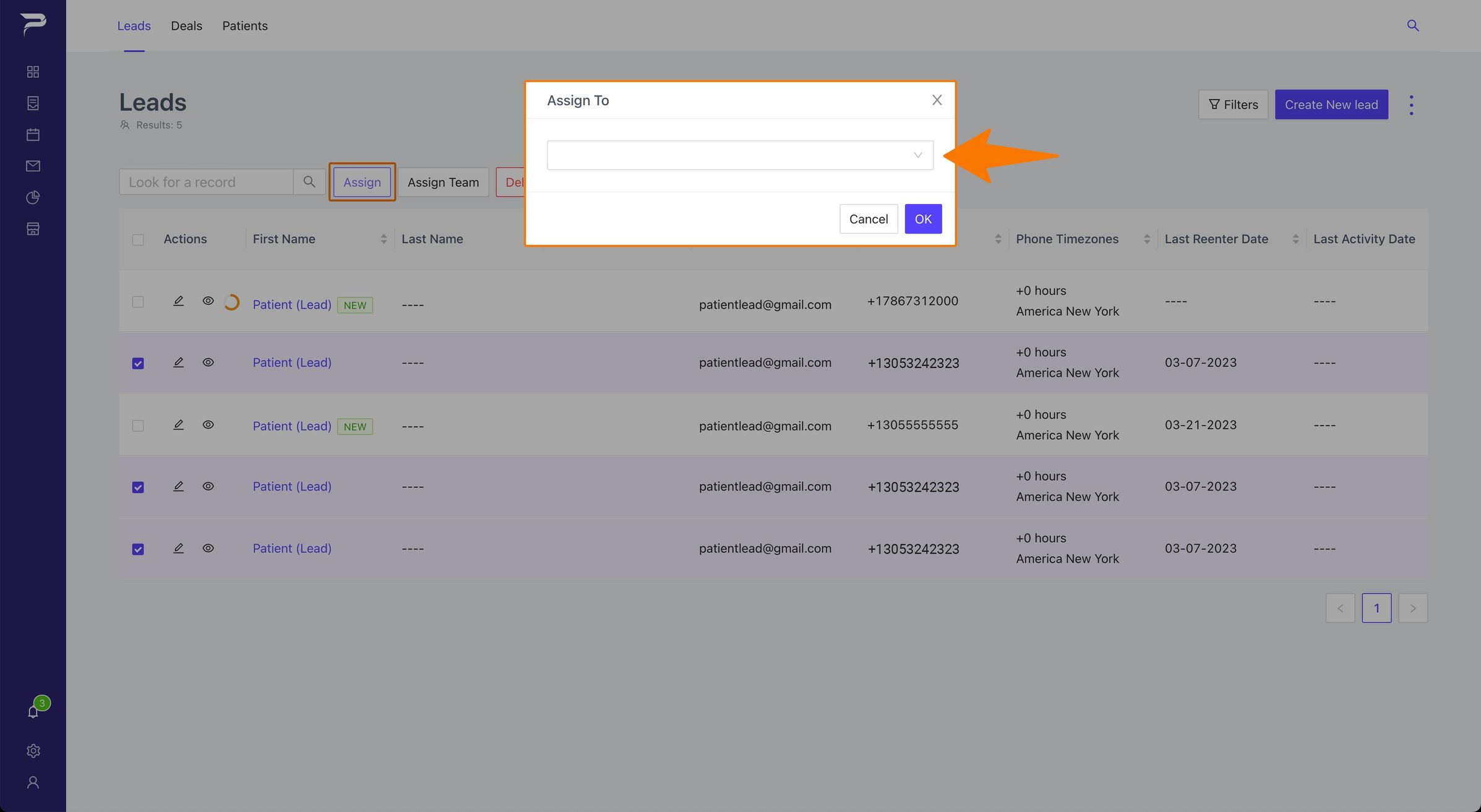
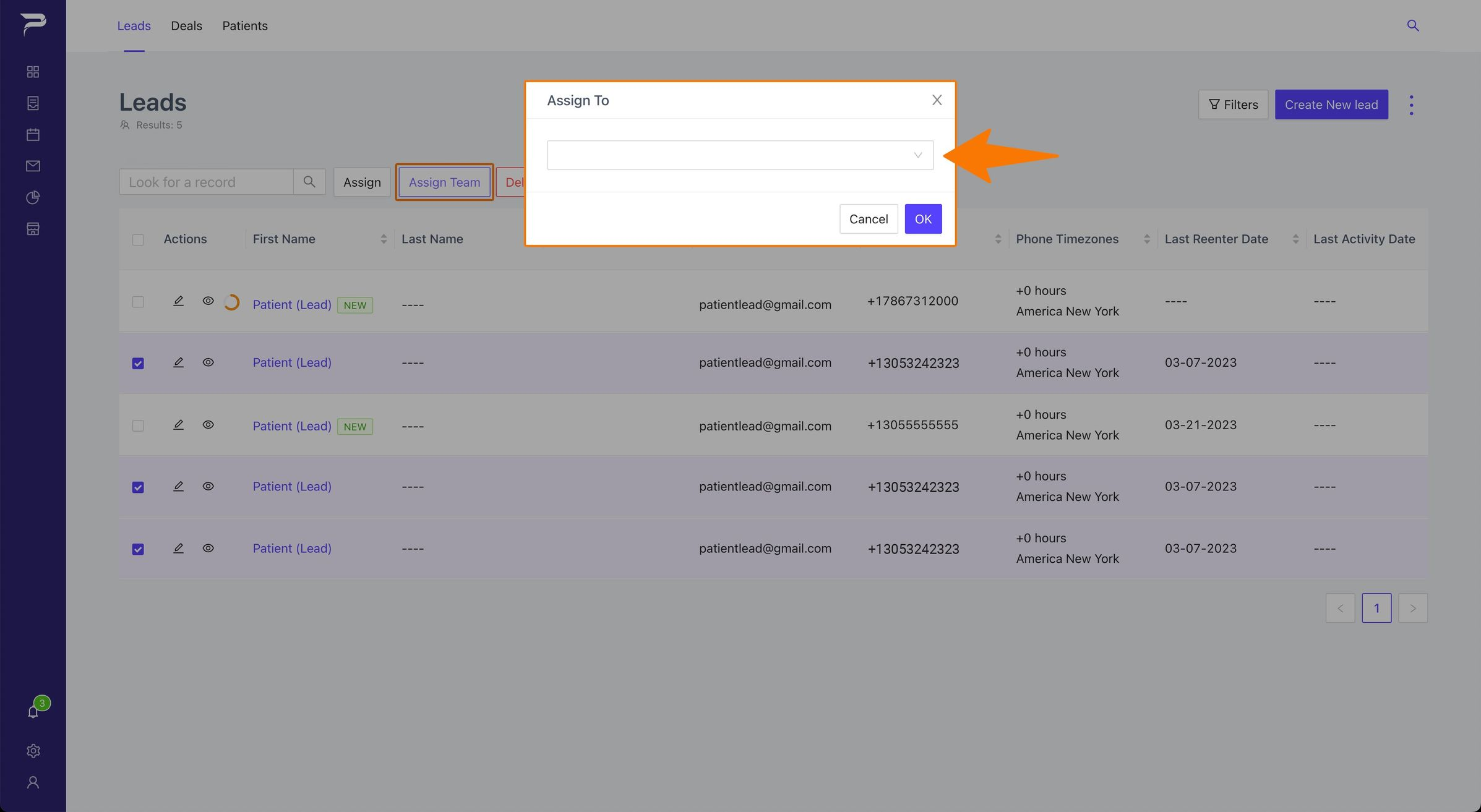
3: Decide if you prefer to allocate the lead to a different team (Team B) or to another member within the current team (Team A).
Note: Click the button. “Assign Team” to change the lead owner to a different team (Team B).
Instructions
Highlight important information in a panel like this one. To edit this panel's color or style, select one of the options in the menu.
Related articles
-
Page:
-
Page:
-
Page:
-
Page:
-
Page: