
How to make the Patient Appointments for surgery?
In this guide, I will explain how to make patient appointments for surgery step by step, by the end of it, you will have a clear understanding of how to make patient appointments for surgery and ensure that your patients receive the best possible care. So let's get started!
Instructions
-
In the section Patient, go to the search bar and look for the patient you want to schedule.
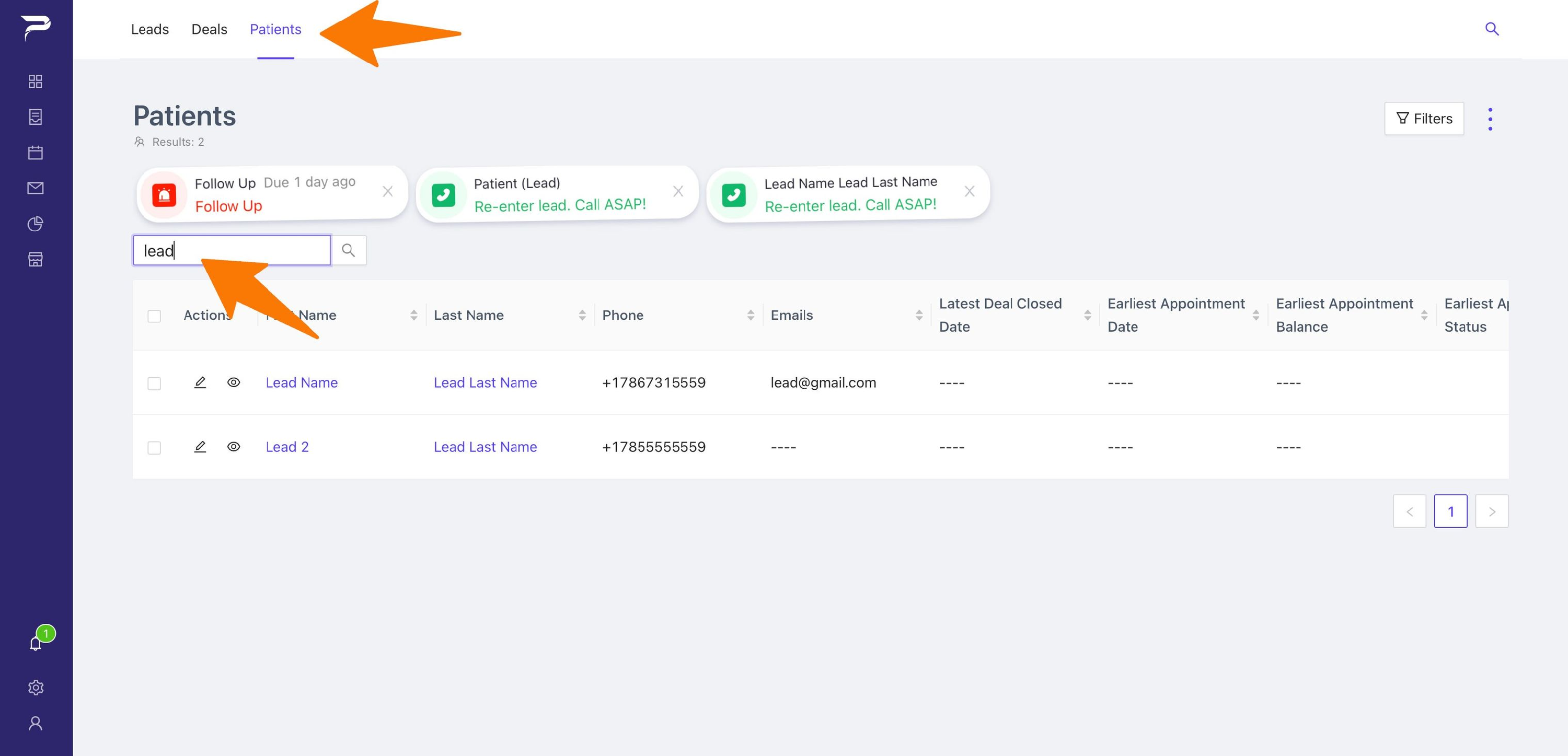
-
Once in the Patient, go to Patient Appointments and click the button (Add New).
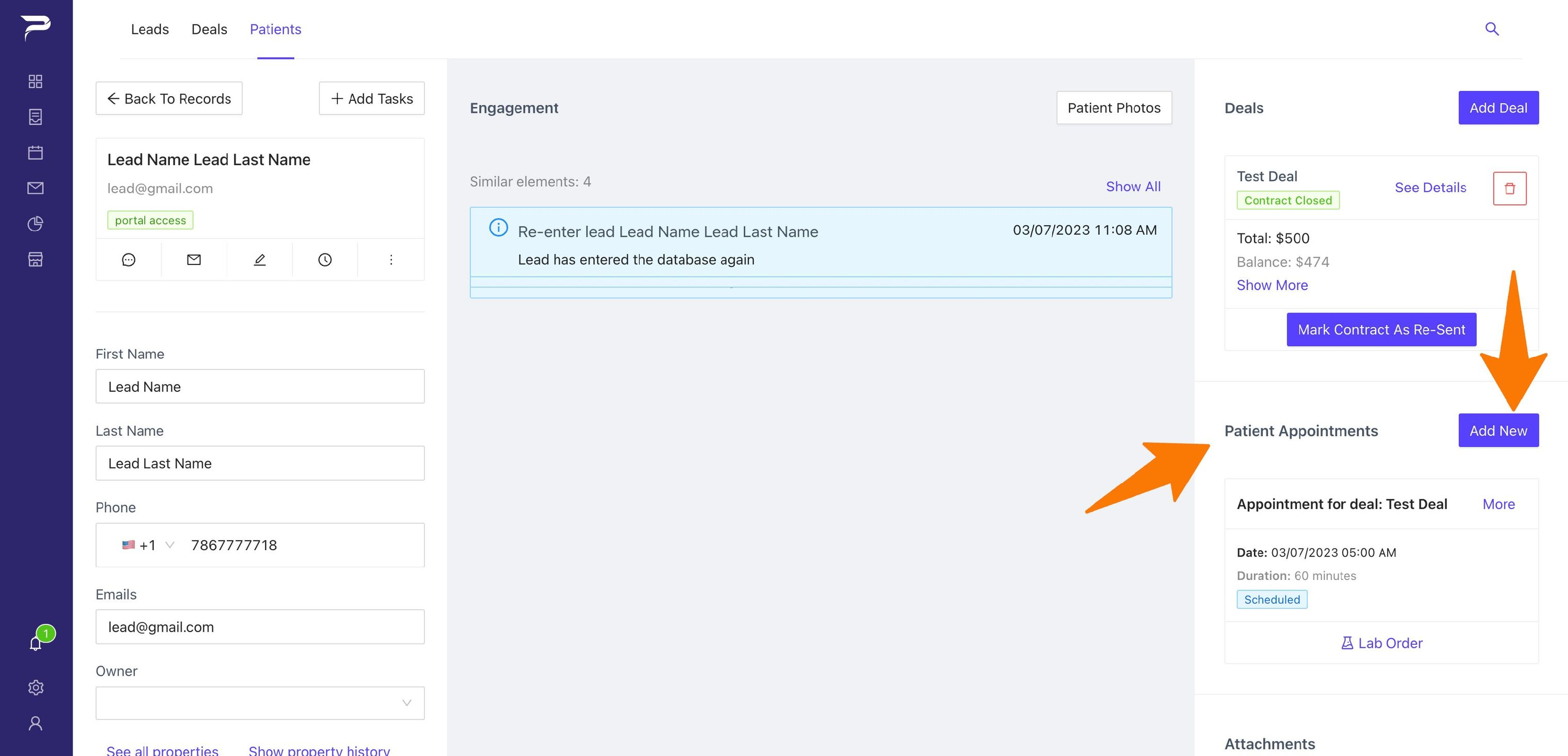
-
A side bar will display for you to fill out.
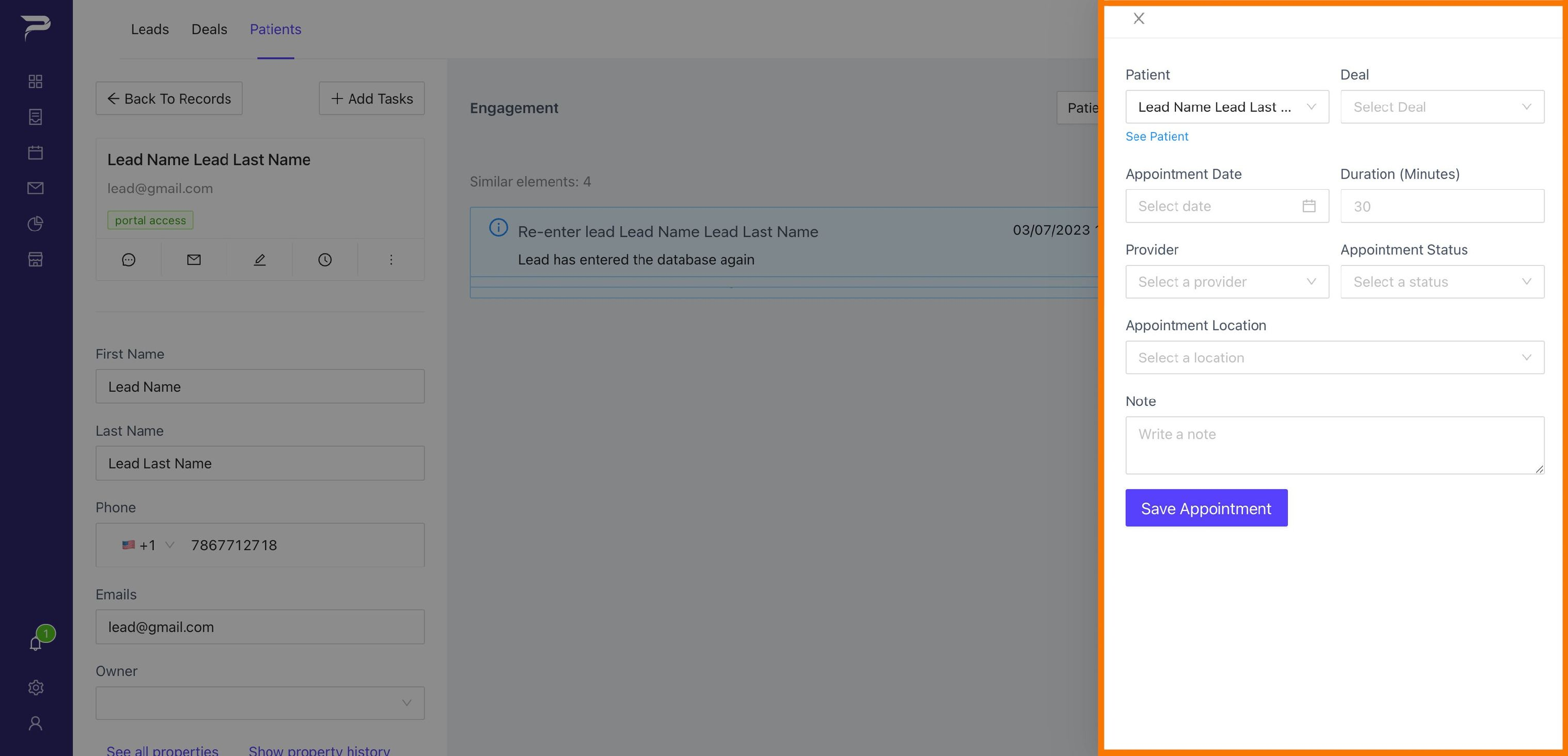
-
Select one of the Deals (procedures) you want to make the appointment for.
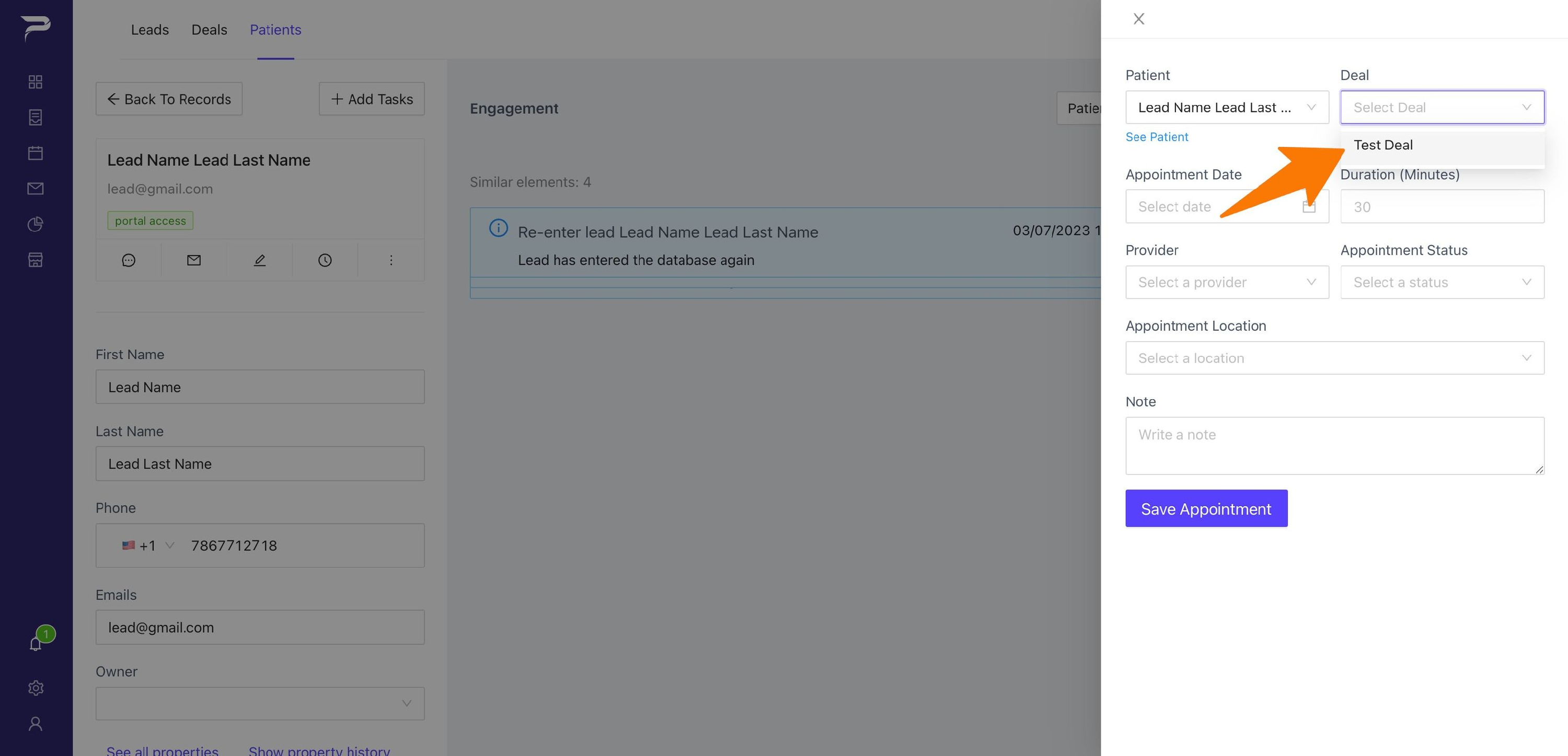
-
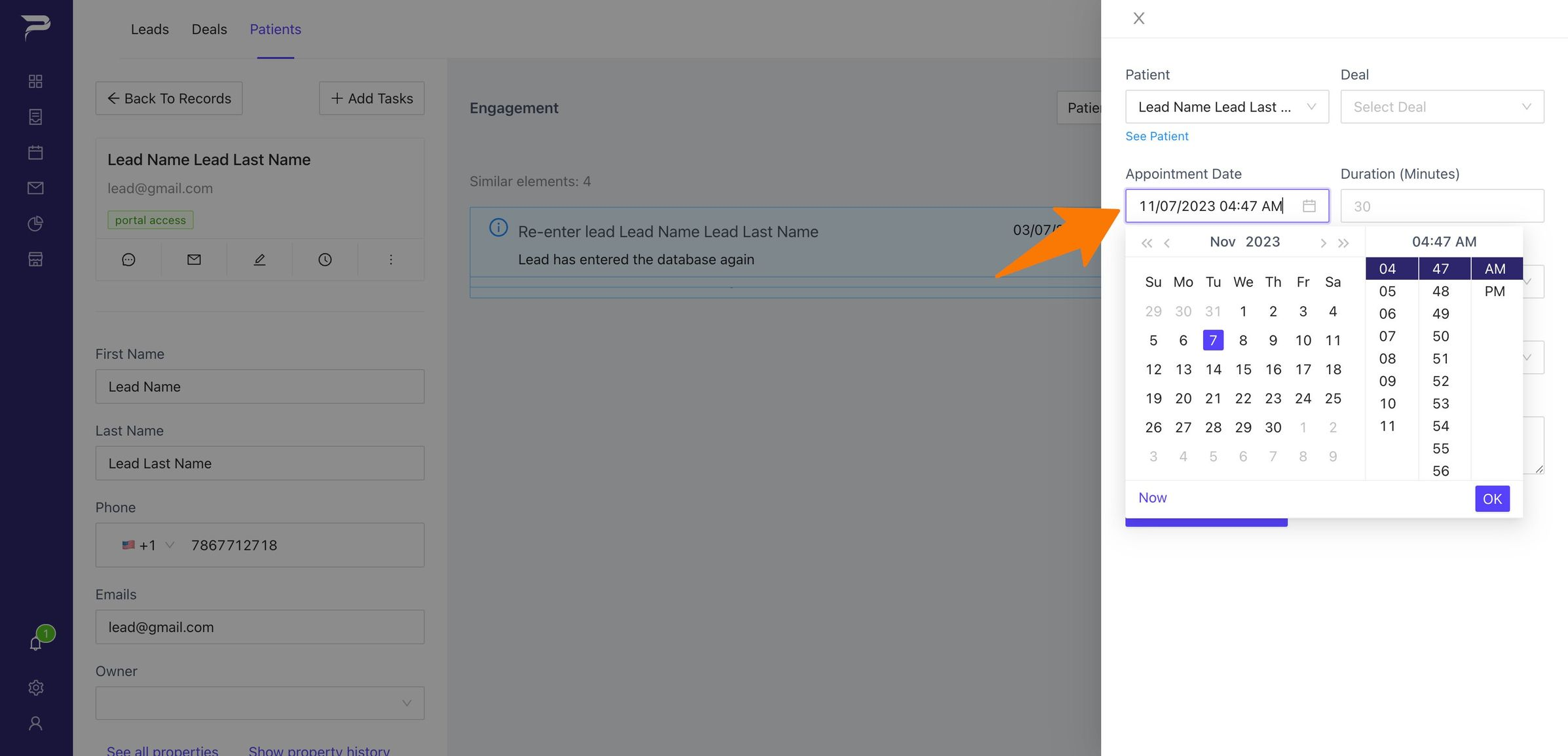
Select date and time for the appointment.
-
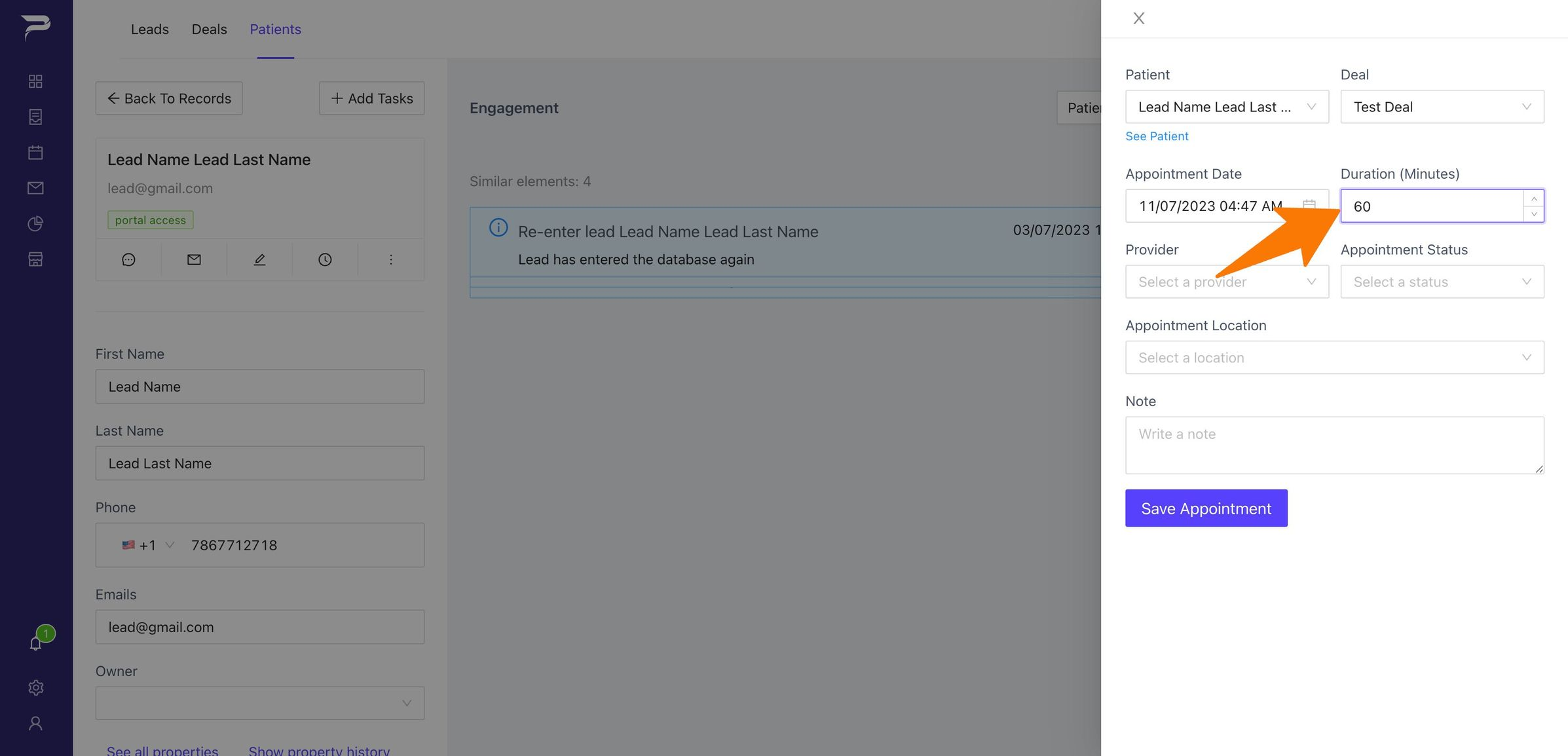
Write down in this section the procedure duration time.
-
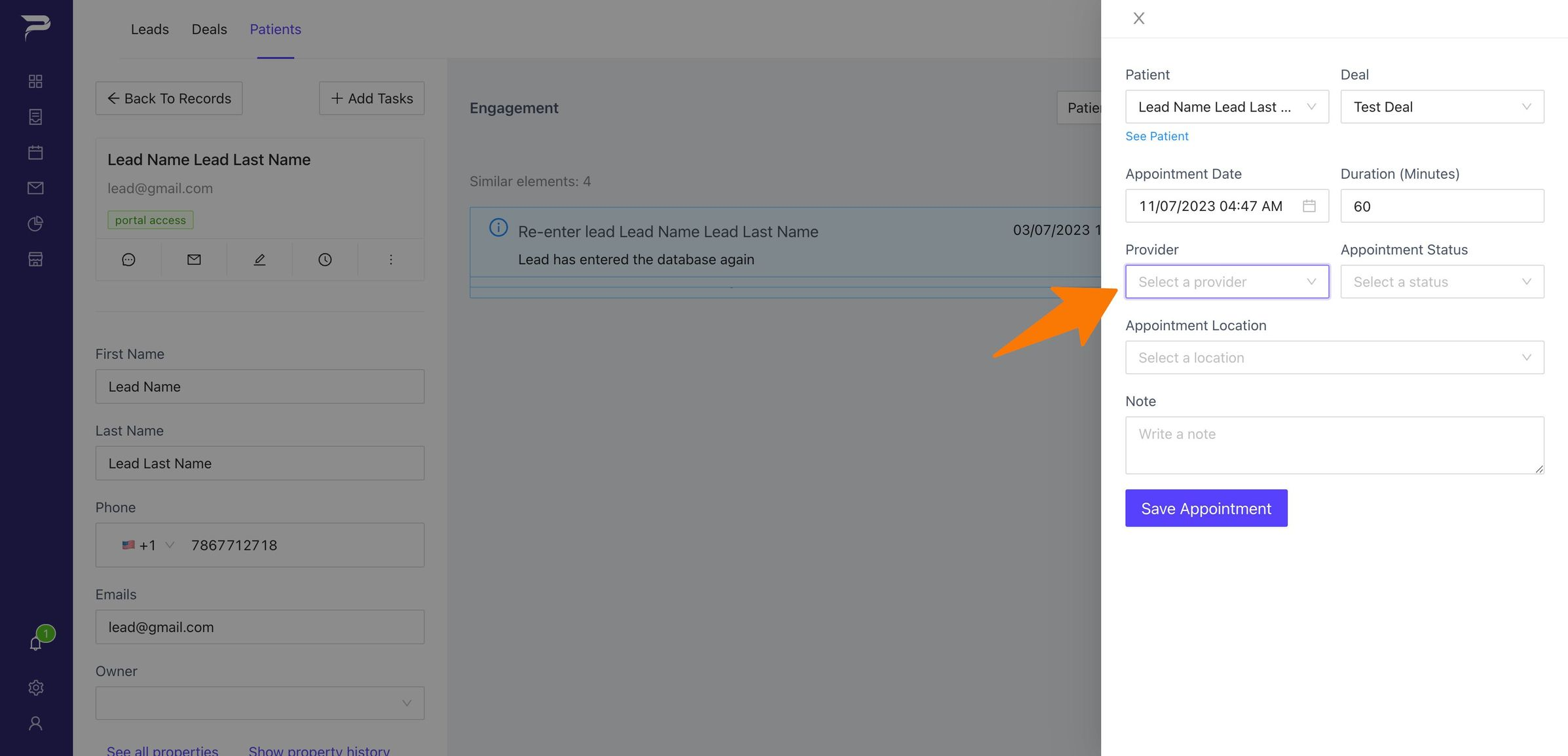
Select the Provider (surgeon) who will perform the surgery.
-
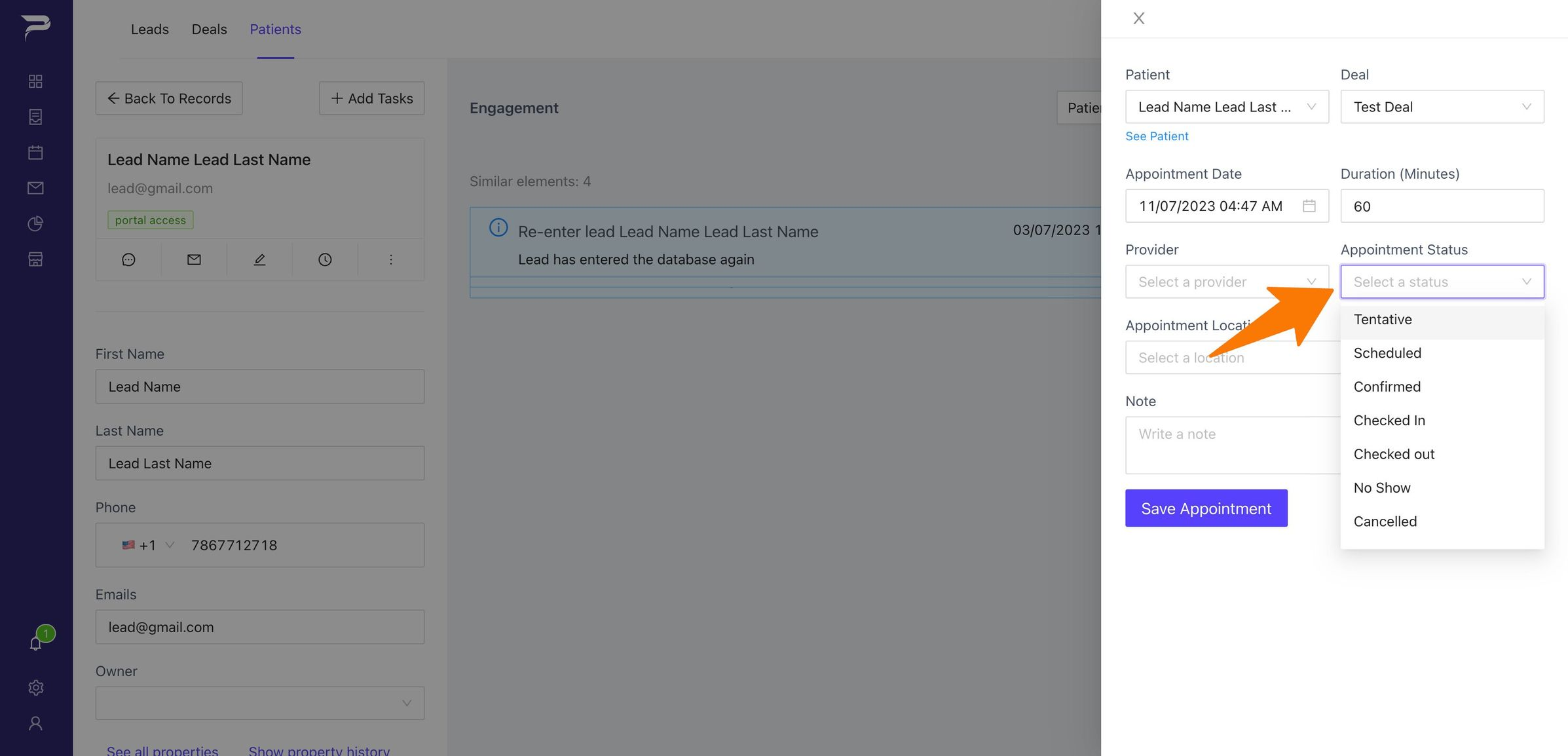
I Appointment Status you will have different options. Click here to see Appointment Status Definitions.
-
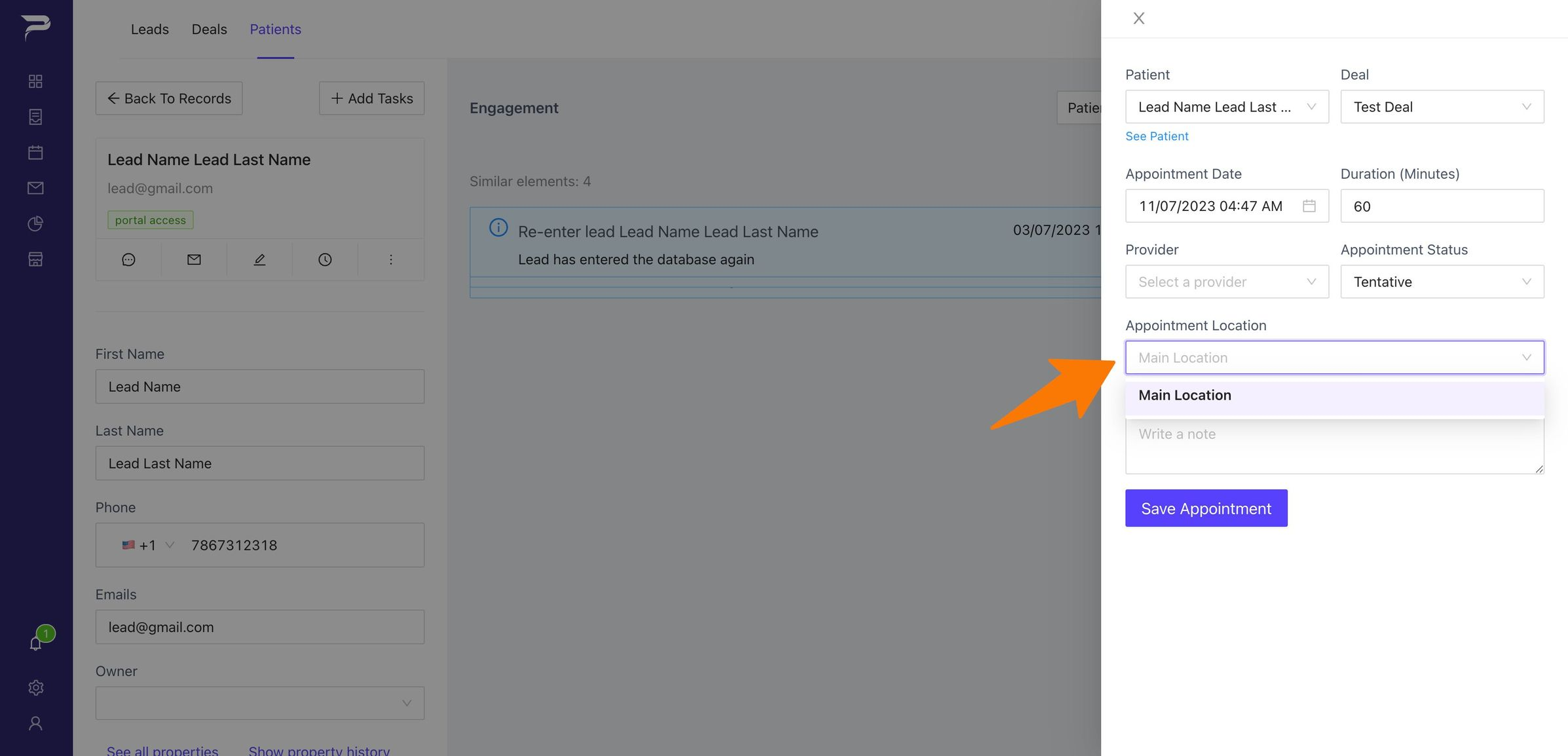
Select the location the surgery will be performed. (Only applies if there are multiple locations).
-
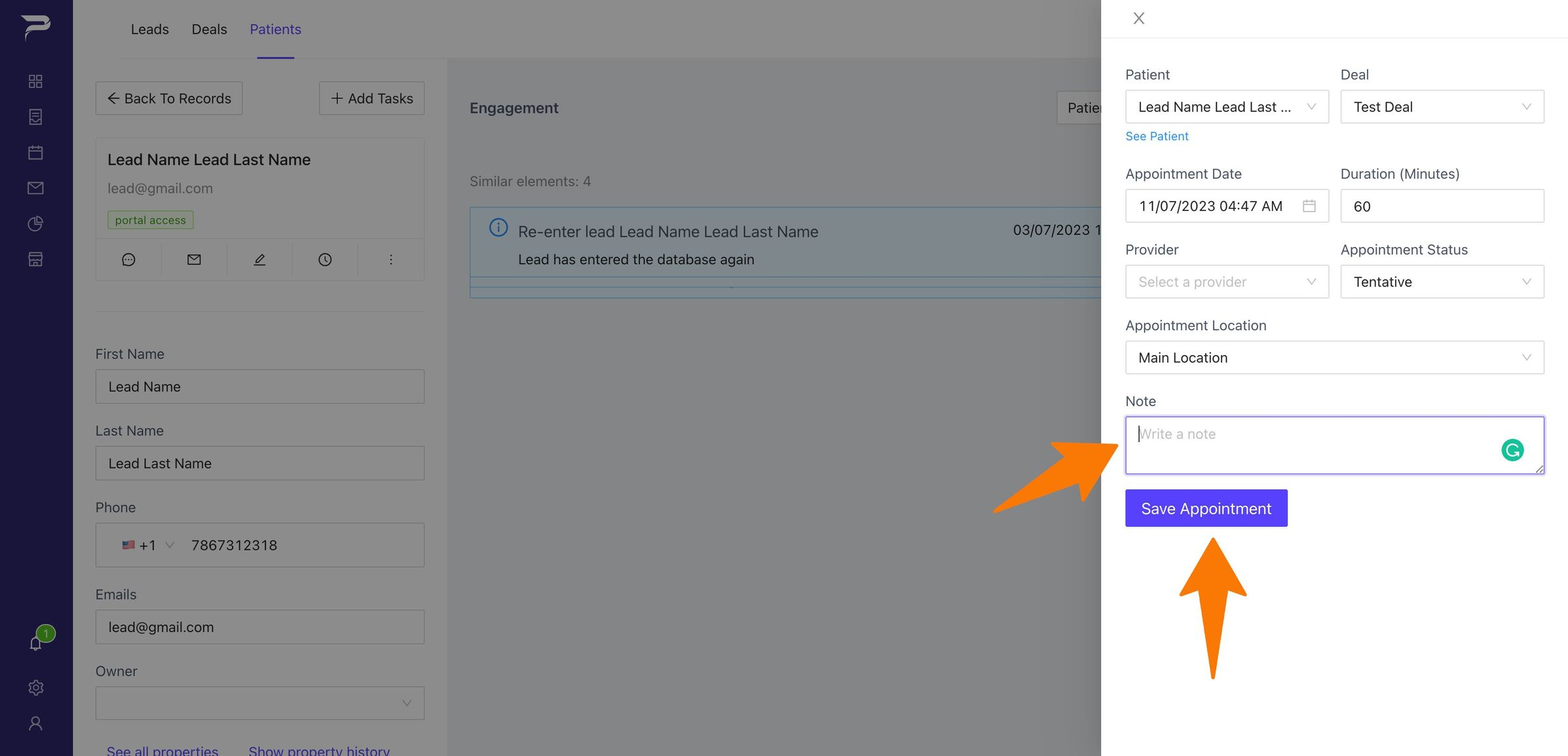
The note box serves as your final opportunity to add a comment. Finally use the button below to save the appointment.
Highlight important information in a panel like this one. To edit this panel's color or style, select one of the options in the menu.
Related articles
-
Page:
-
Page:
-
Page:
-
Page:
-
Page: