
Learn how to make alerts
Discovering Alerts: Benefits and Steps to Create Them
What are alerts?
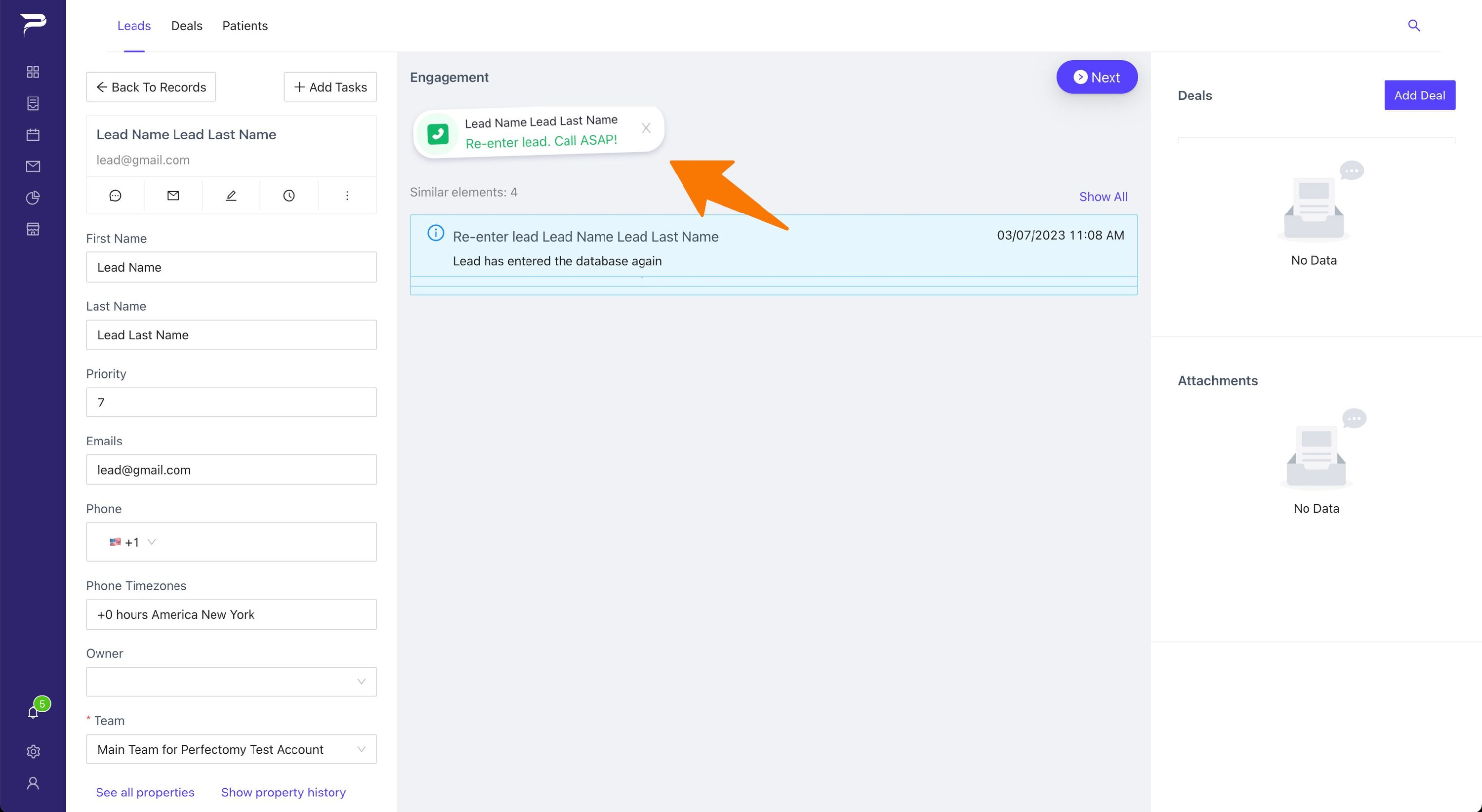
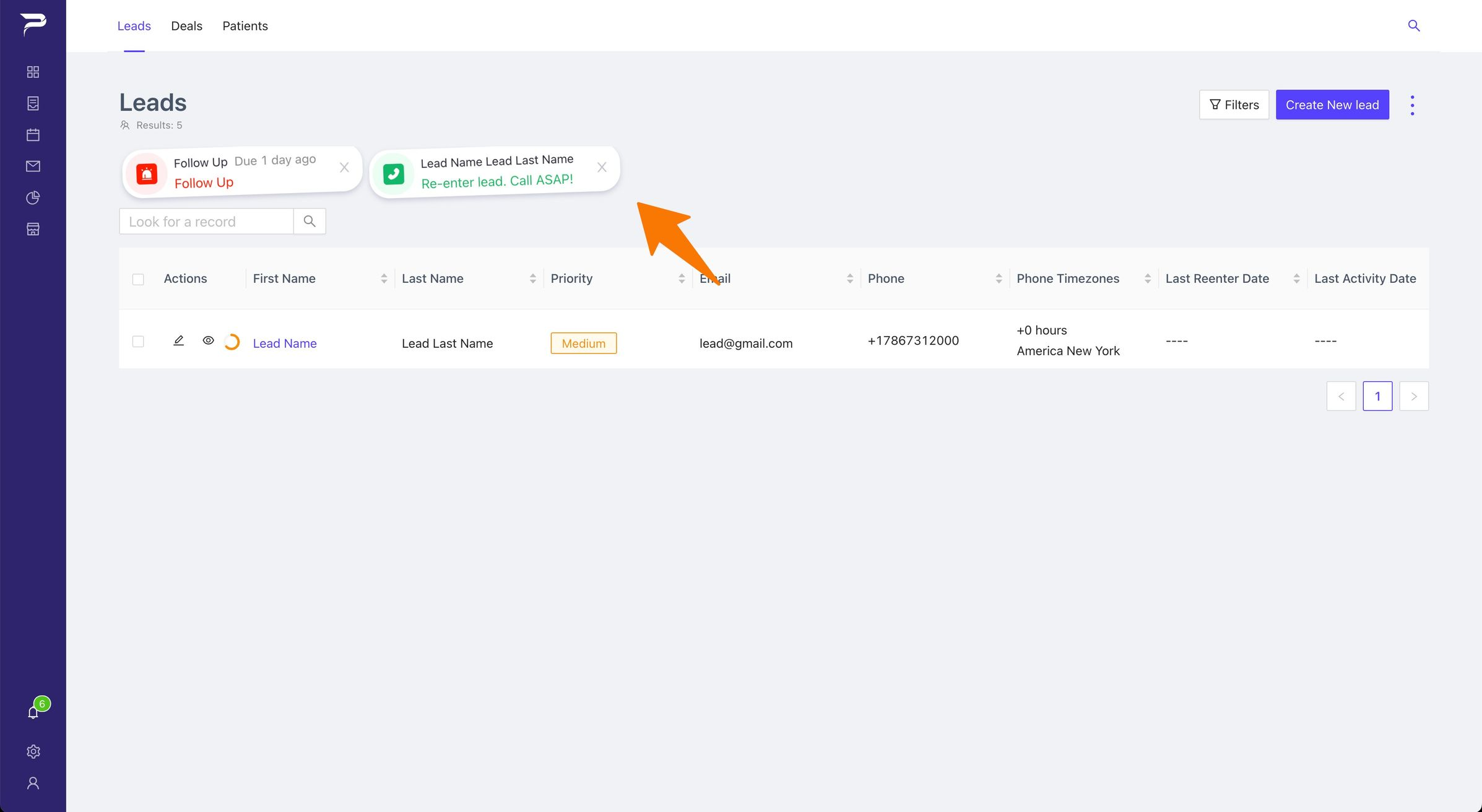
Alerts act as convenient reminders that offer concise messages and a specific timeline. When an alert is initially set up, the notification appears in a reassuring green color, indicating that you're on track to meet the task's deadline. However, if the alarm's due date elapses without being addressed, the notification turns red and starts to shake, providing a clear signal that the alert has become overdue and requires your immediate attention.
What are the benefits of alerts?
Benefits of using alerts as a manager:
- You can create alerts for each sales consultants with unique task as reminders, such as “This patient’s wants to put a deposit “ “Call again next week” etc…
- You will be able to see all alert your sales consultants create, reflected on the top of the dashboard or on Lead details Workplace (shown in the image above).
- If the notifications become red, you'll know your sales consultants aren't completing their tasks.
- If the lead is a duplicate when re-entered, an alert will automatically appear to notify you.
How do I create alerts?
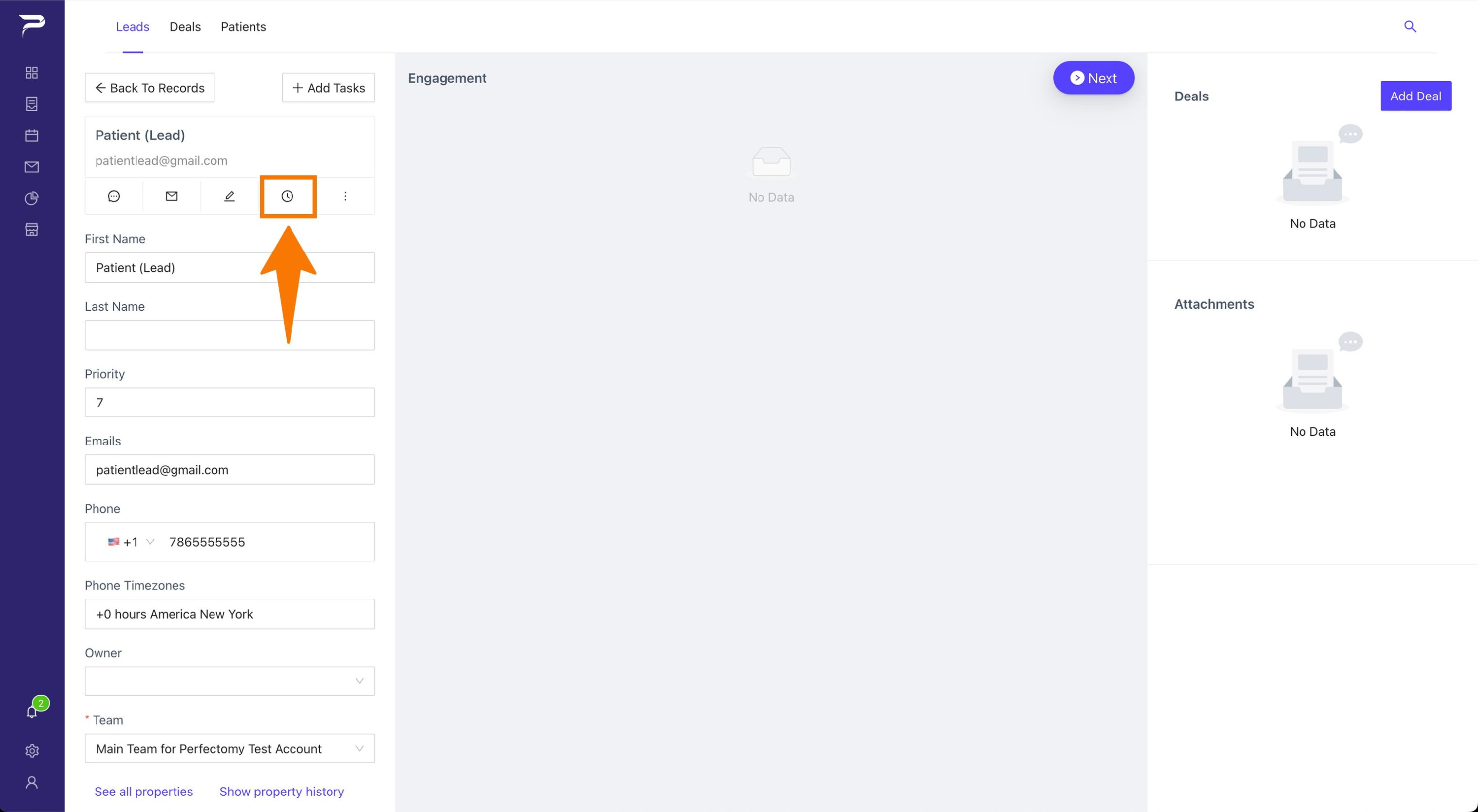
Step 1: To create an alert, simply press the button that displays a clock icon, shown in the image below.
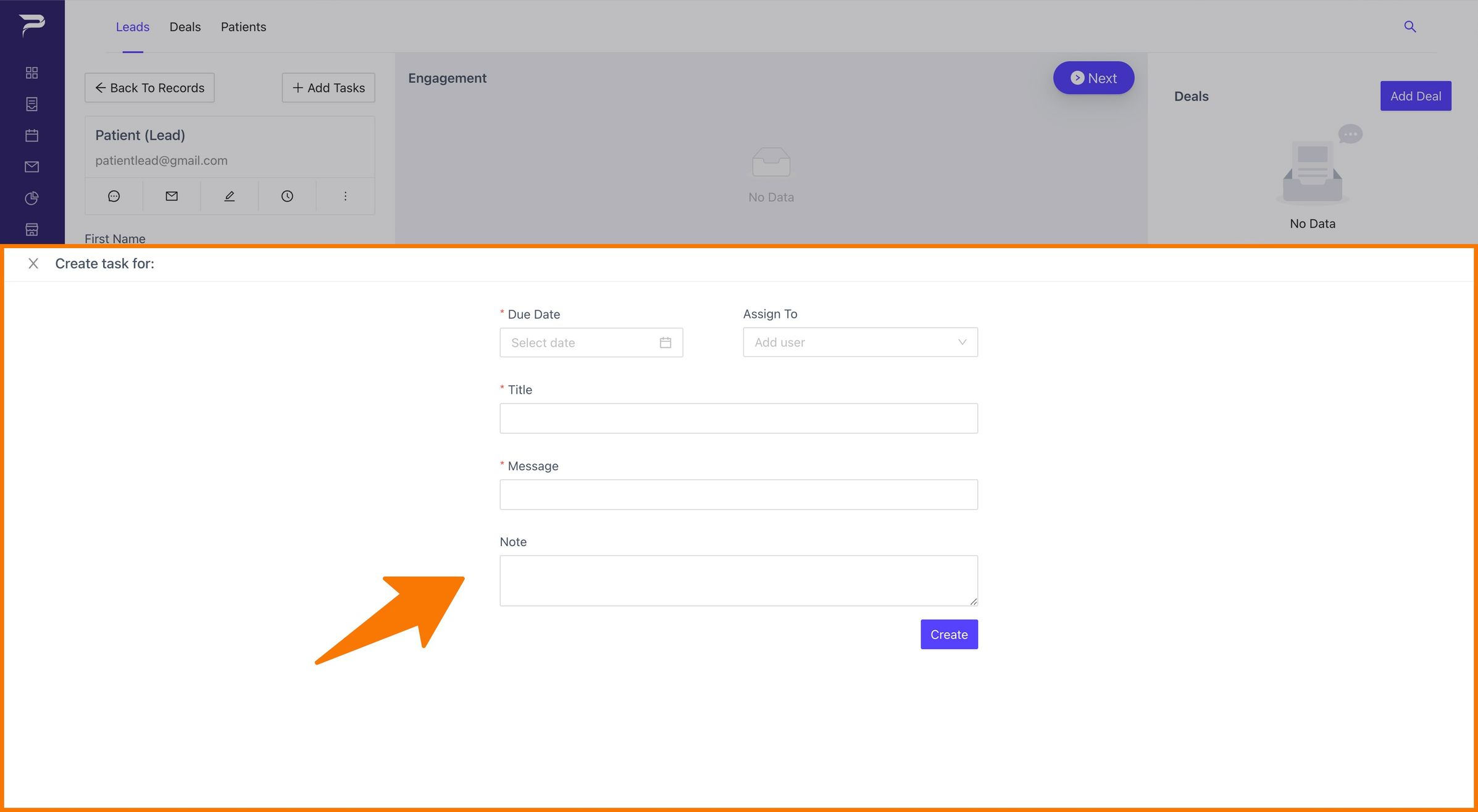
Step 2: After the popup appears, you can create the alert with all the required specifications.
Note: Once the alert is created it will appear in Leads Details and the Leads Overview
Eg: Leads Details
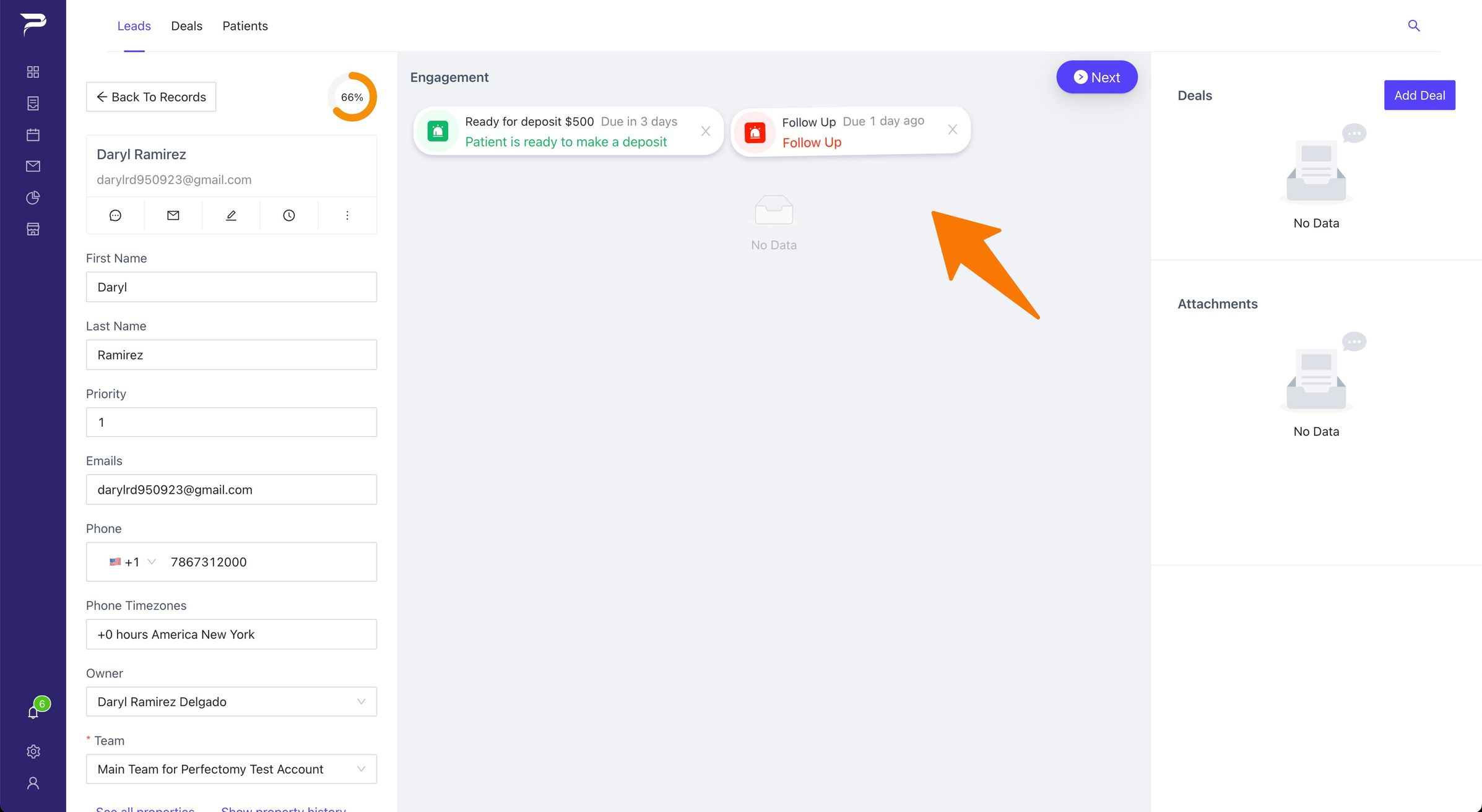
Eg: Leads Overview
Highlight important information in a panel like this one. To edit this panel's color or style, select one of the options in the menu.
Related articles
-
Page:
-
Page:
-
Page:
-
Page:
-
Page: