
How to Create Products for your Deals?
In this guide, I will explain how to create products for your deals step by step, and by the end of this guide, you will have a clear understanding of how to create products that meet the needs of your customers and help you close more deals. So let's get started!
Instructions
-
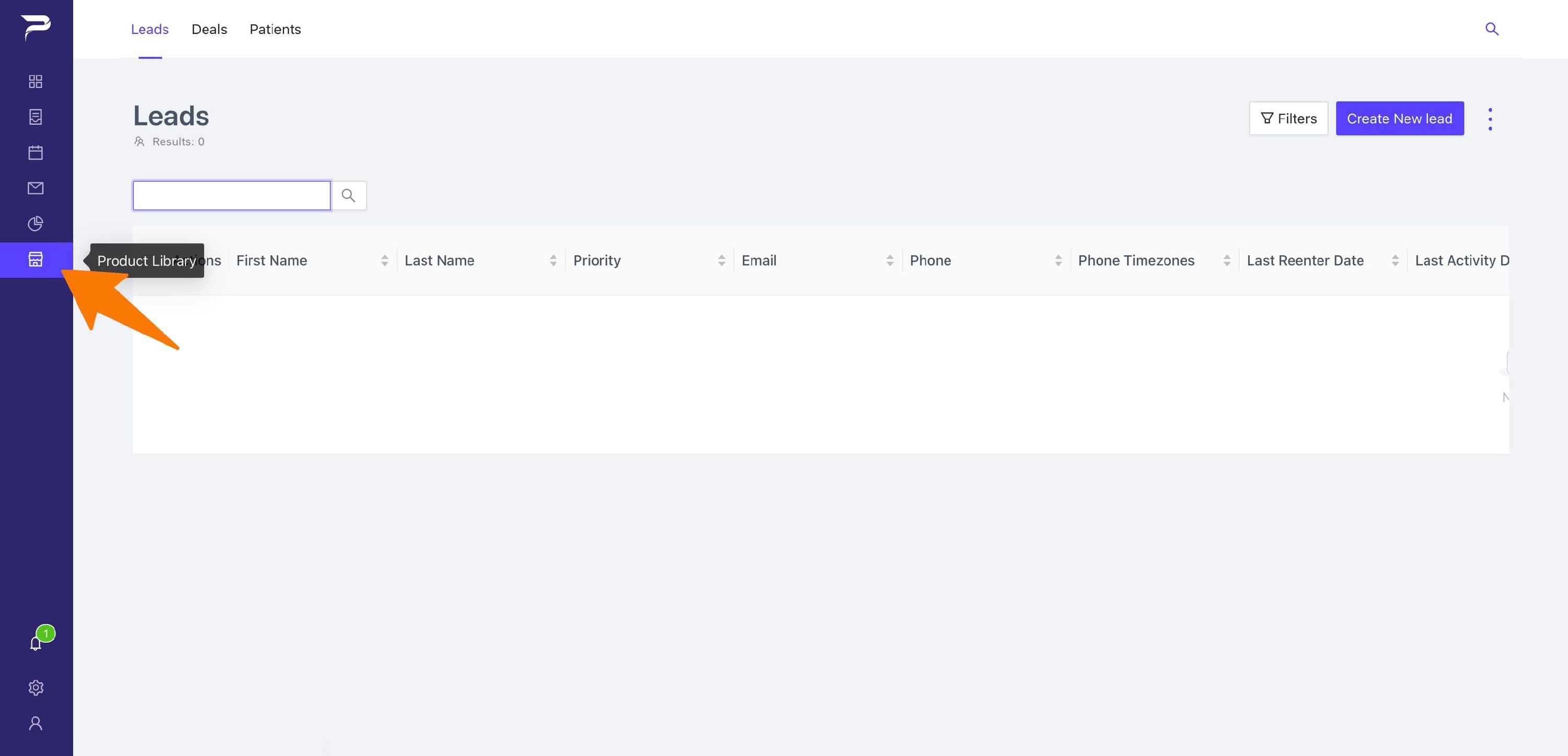
In the Navigational Menu go to the (Product Library) icon and Click it.
-
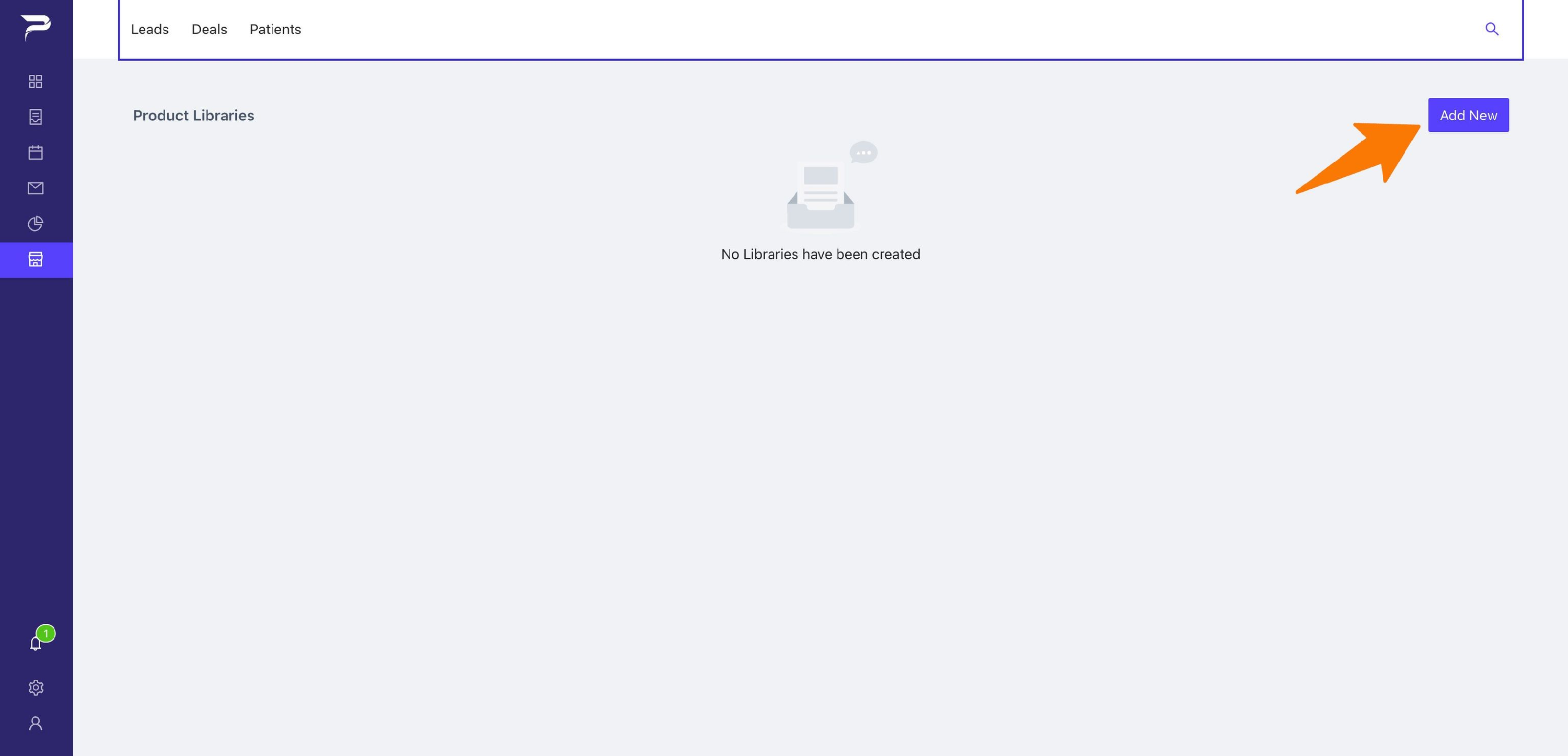
Once in the Product Library go to the button in the right corner to add your libraries. (note: you can add as many Libraries as you like)
-
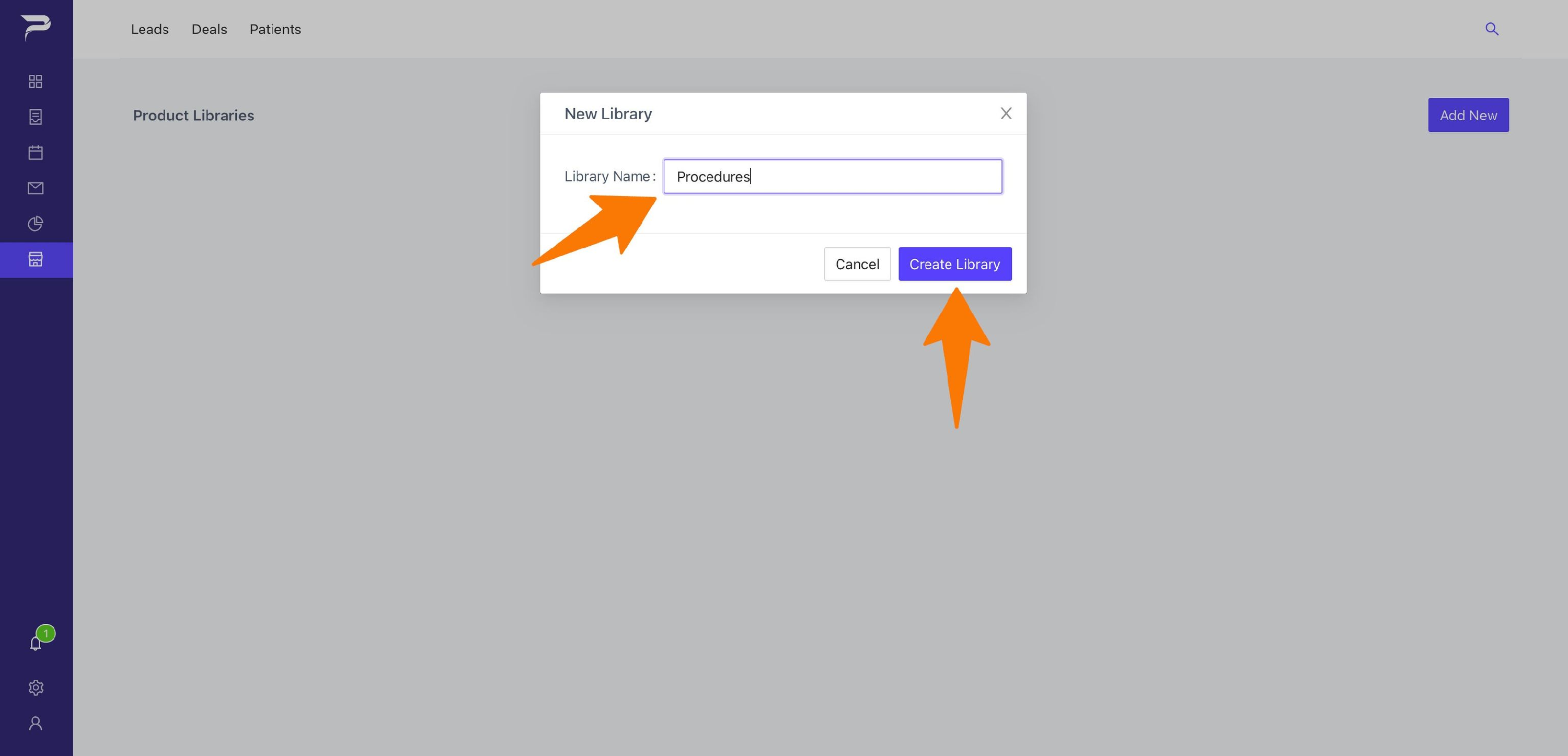
Choose the name of your New Library, and click the button (Create Library) to finish.
-
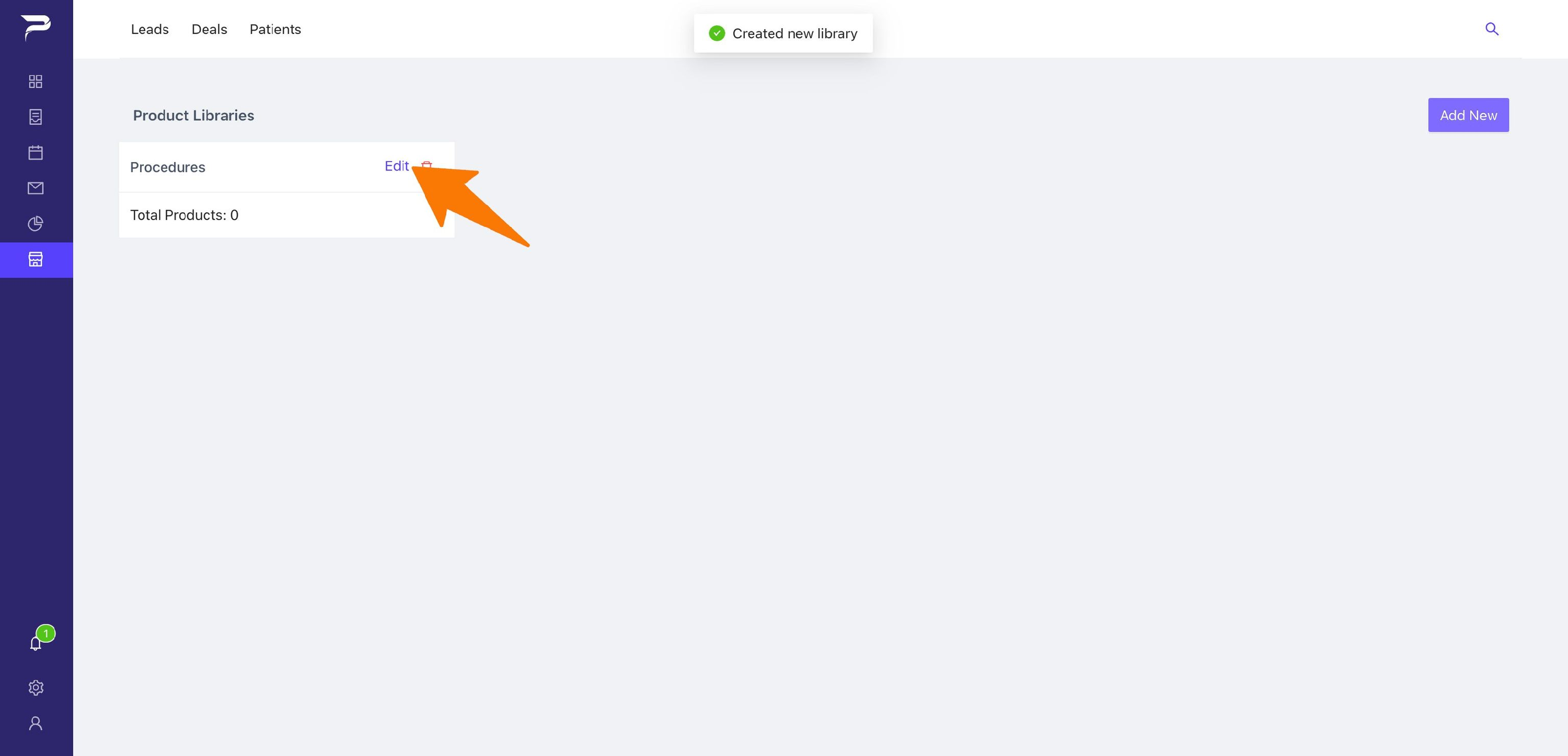
Let's add your products now that the Library has been created, go to your library and click (edit).
-
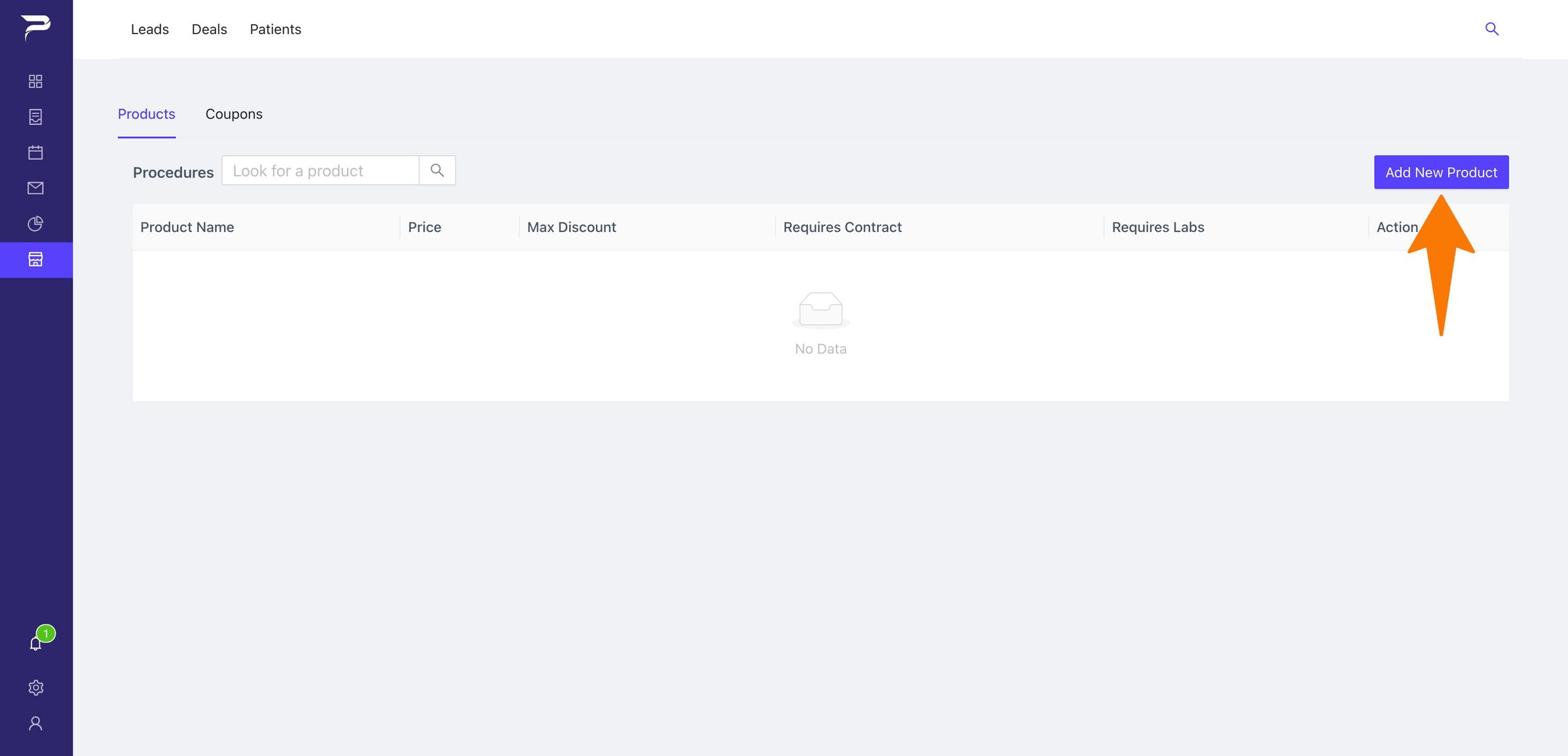
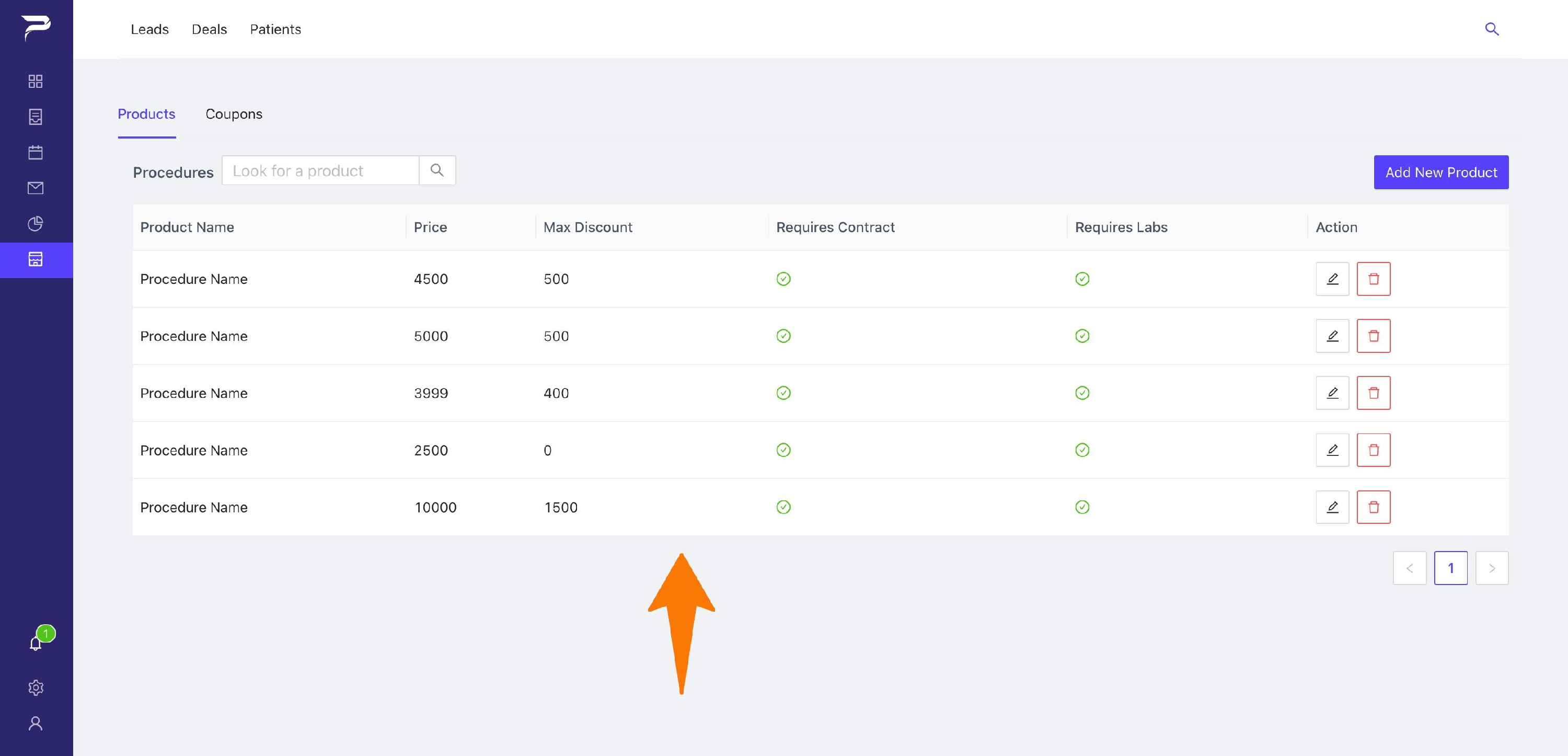
While within your library, click the (Add New Product) button at the top.
-
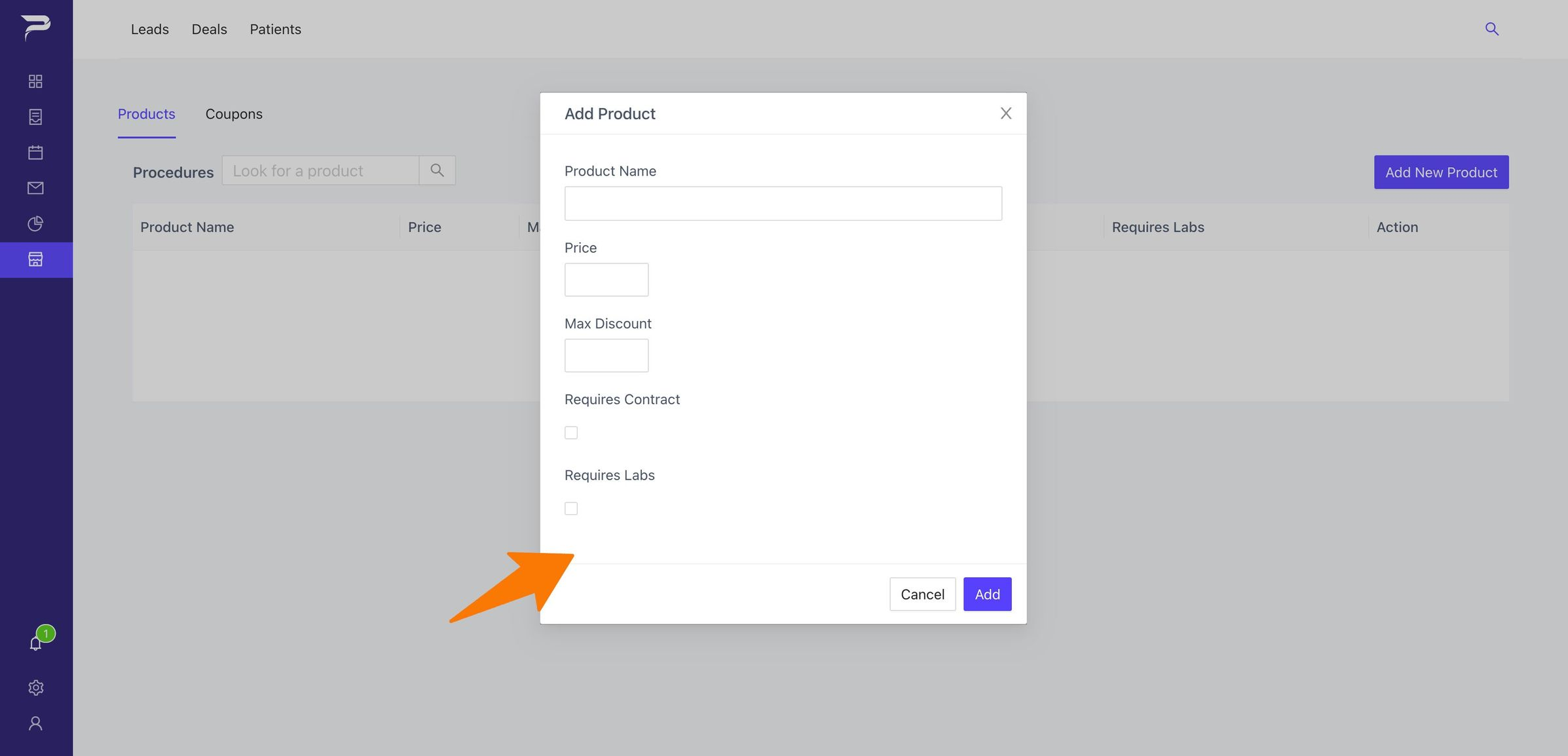
A box will appear for you to fill out.
-
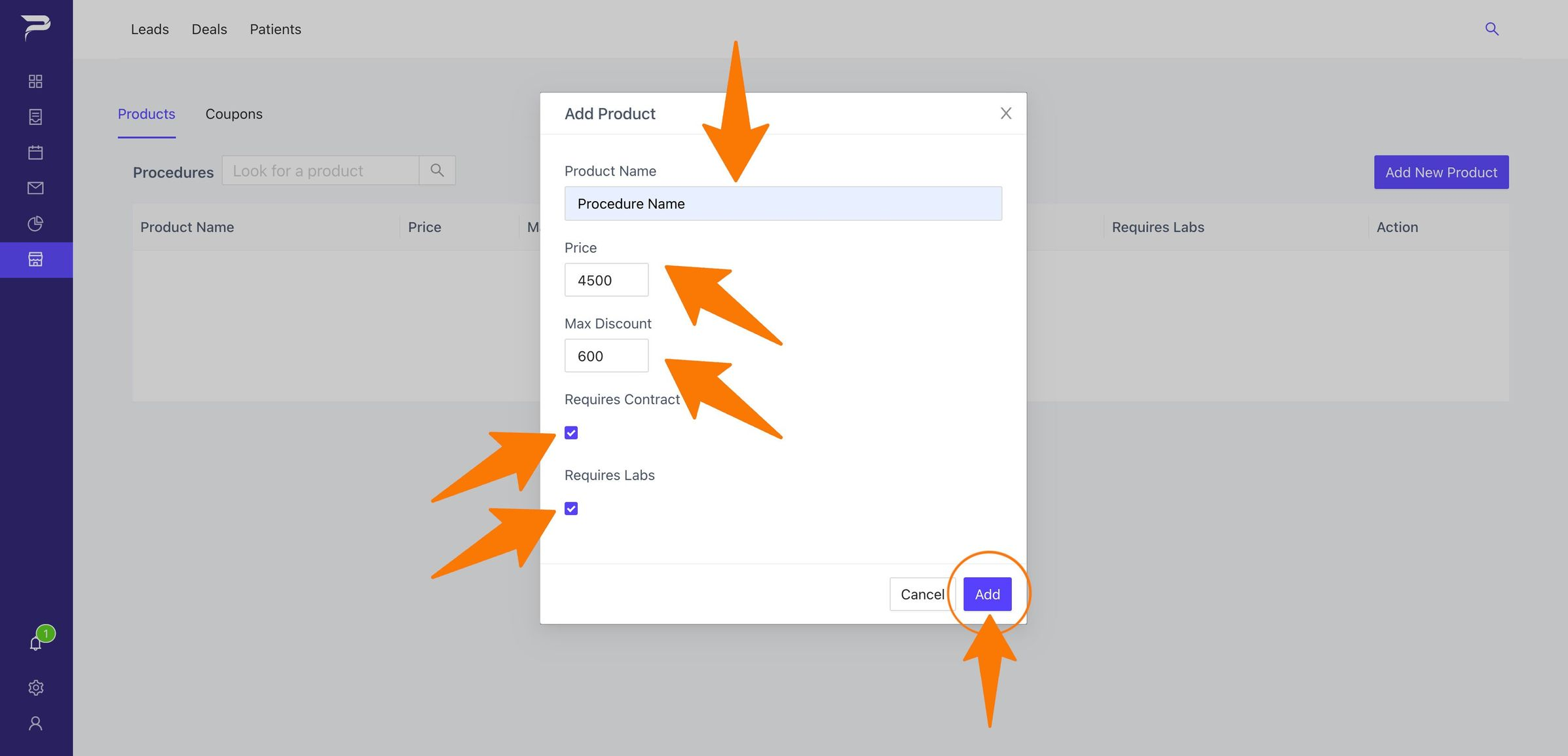
Choose the name of your product, enter the price and the maximum discount you want to provide to this procedure, and then check the boxes to indicate if your product requires Contract or Labs. Then, to complete, press the button (Add).
-
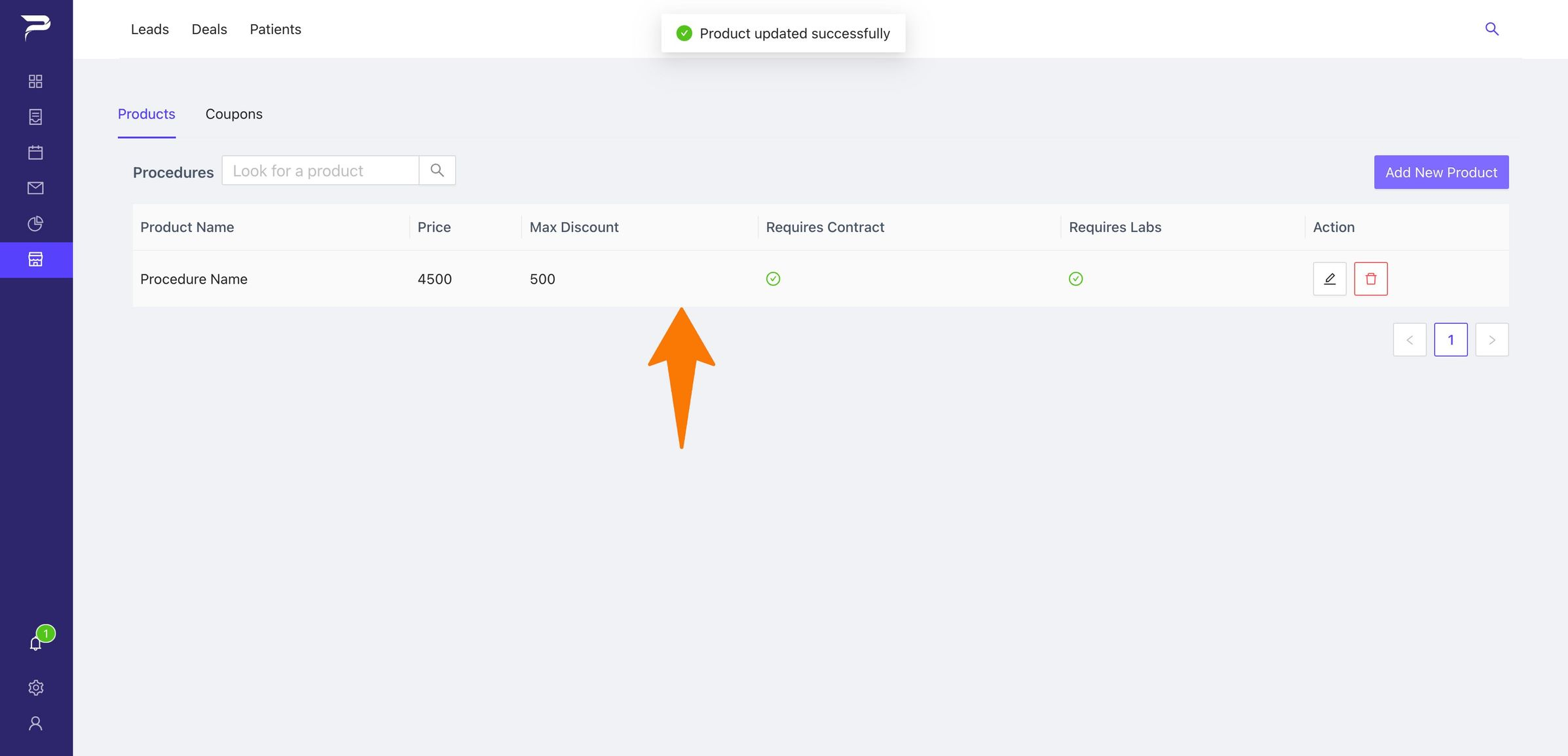
You have successfully created your product.
-
Note: Similar to Libraries, you are free to build an unlimited number of Products.
Highlight important information in a panel like this one. To edit this panel's color or style, select one of the options in the menu.
Related articles
-
Page:
-
Page:
-
Page:
-
Page:
-
Page: